

AI Video Generation
Access the Feature
- Click
AI Videoin the left navigation bar to enter the creation homepage. - The center of the page displays "Start your video creation, bring dreams to life instantly", with the creation operation area below.
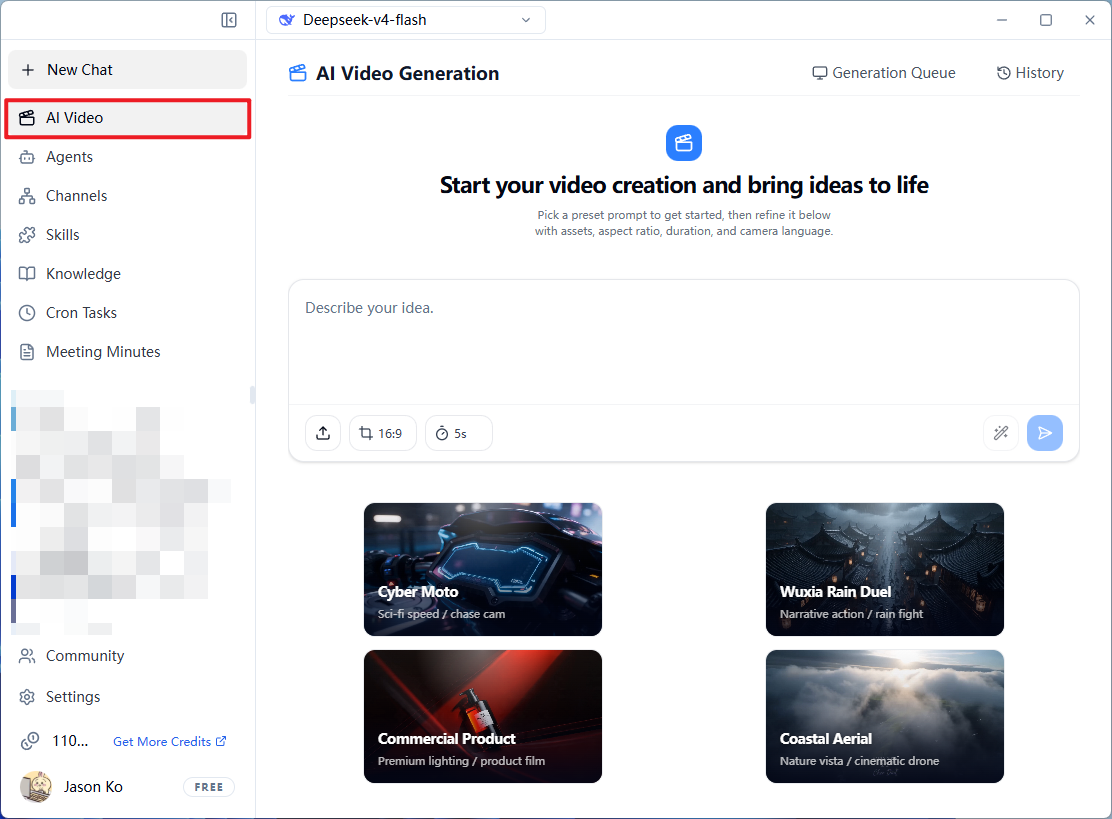
Start Creating
You can choose either Use a Preset Template or Manually Enter Your Idea:
Method 1: Use a Preset Template
-
Click the style you're interested in at the bottom template area (e.g., Cyber Motorcycle, Kung Fu Rain Battle, Commercial Product, Coastal Aerial Shot).
-
The system will automatically fill in the corresponding detailed prompt in the text box above.
-
After confirming or modifying the prompt, click the blue Play/Generate button in the bottom-right corner.
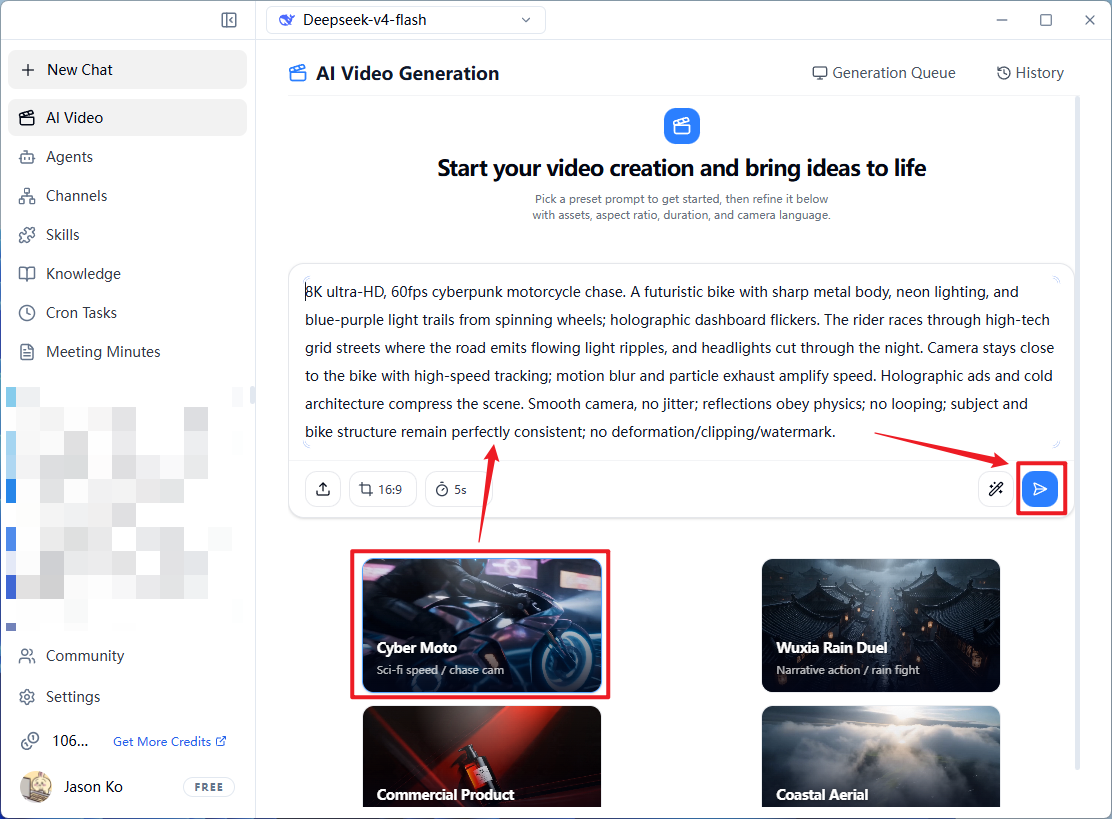
Method 2: Custom Input
- Enter your video creative description directly in the
Describe Your Ideatext box. - (Optional) Click the Upload icon in the bottom-left corner to upload reference materials.
- Adjust generation parameters:
- Aspect Ratio: Default is
16:9 - Duration: Default is
5s
- Aspect Ratio: Default is
- Click the blue Play/Generate button in the bottom-right corner to submit the task.
Monitor Generation Progress
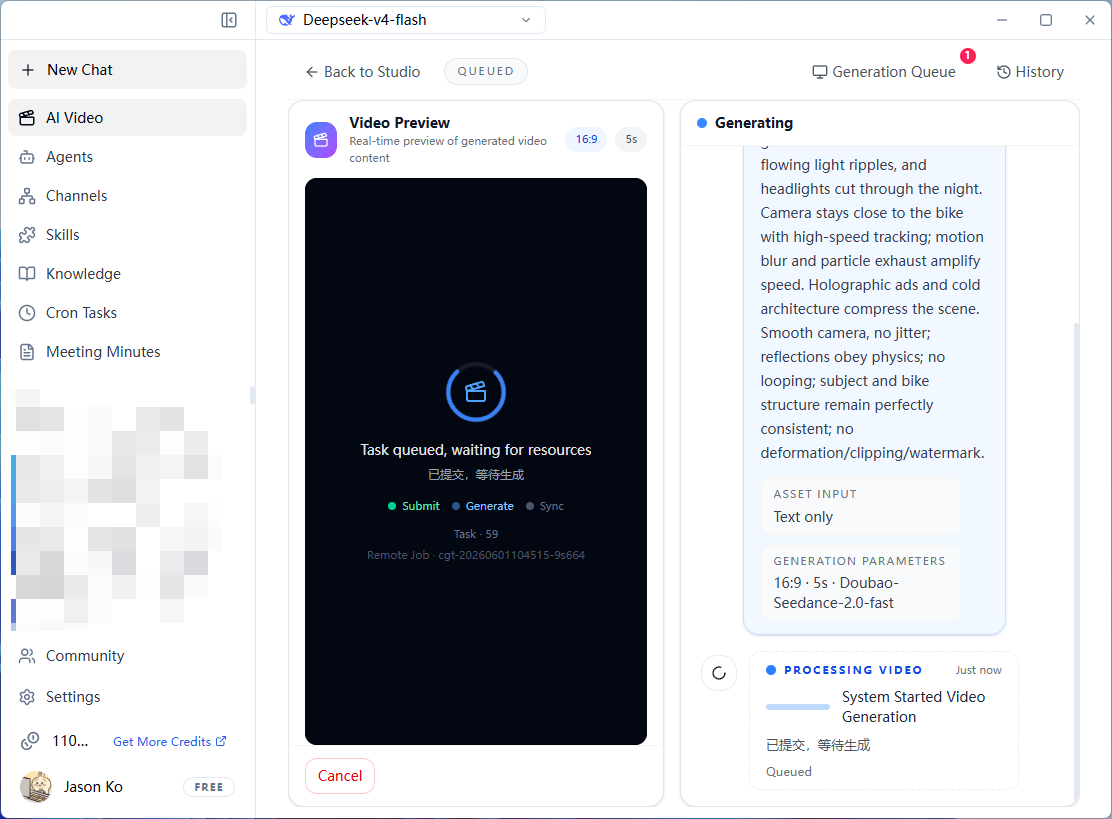
After submitting the task, the interface will jump to the generation details page:
- Queued: The center of the screen shows "Task has entered the queue, waiting for resource allocation" (queued).
- Generating: The right panel shows "Generating" and displays your original idea, input material type, and model parameters in real time (e.g., Doubao-Seedance-2.0-fast).
- Cancel Task: To interrupt, click the
Cancelbutton in the bottom-left corner.
View and Download Results
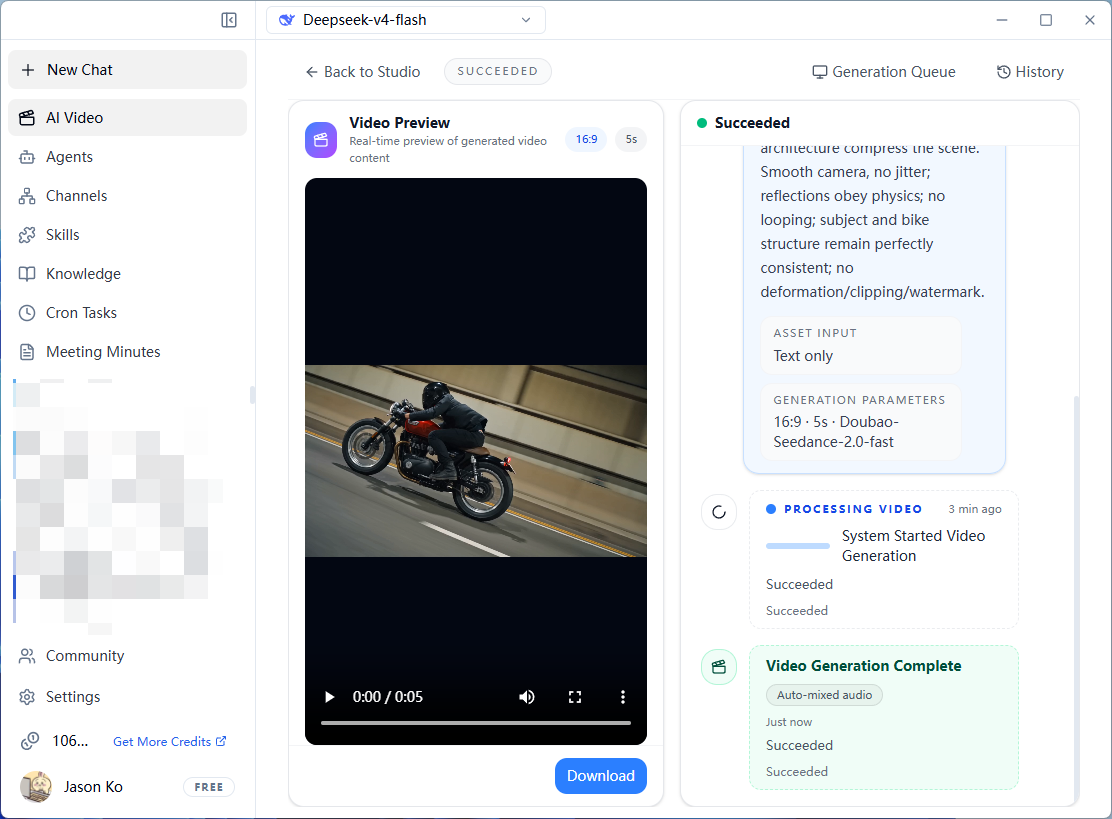
Once the video is generated, the interface status updates to Completed:
Frequently Asked Questions
Q: Clicking the Generate button has no response?
Please check whether a valid prompt has been entered in the text box. If you're using a template, please ensure the template content has been loaded into the text box.
Q: Can I modify the generated video's duration and aspect ratio?
Yes. Before clicking the Generate button, click the 16:9 and 5s dropdown menus below the input box to switch between different aspect ratios and video durations.
Q: Why does it show "Task has entered the queue" for a long time without any progress?
AI video generation requires a lot of computing power, and the system may currently be at peak hours. Please be patient — the system will process tasks in order automatically. When the status changes to "Generating", rendering is in progress.