

Image Generation
Generate and edit images locally using Herdsman's text-to-image and image-to-image models.
This feature is hardware-intensive. At least 6 GB of VRAM is required.
Quick Start
-
Type your image description in the chat box and click the Generate Image button.
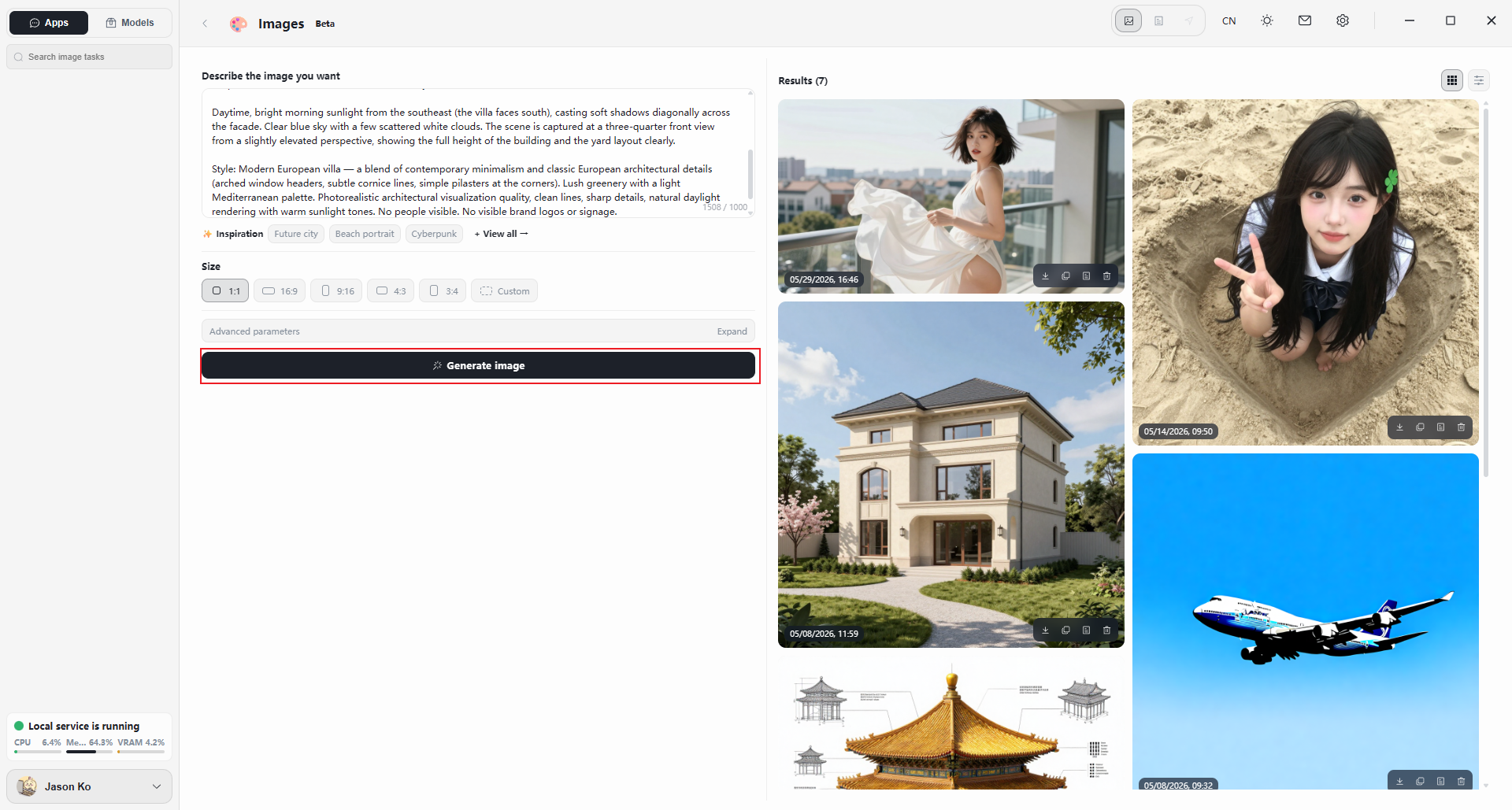
-
Wait for the model to render the image. A progress bar appears below the chat box.
Render time varies with hardware and prompt complexity. Please be patient.
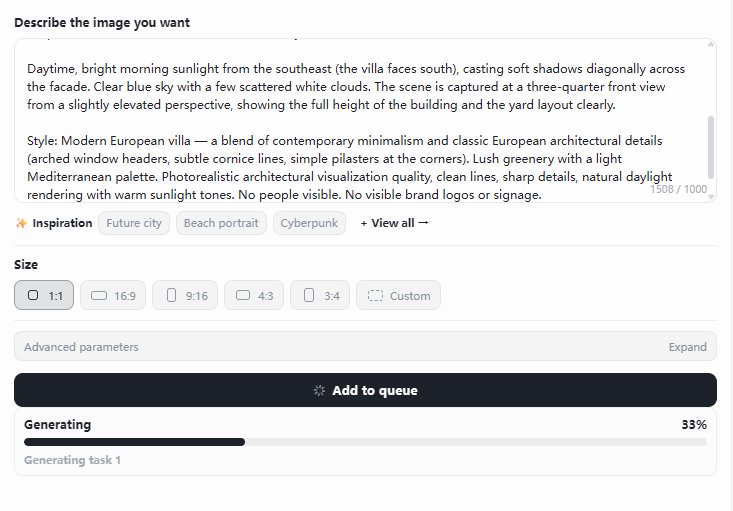
-
Once complete, the result appears in the Generated Result panel on the right.
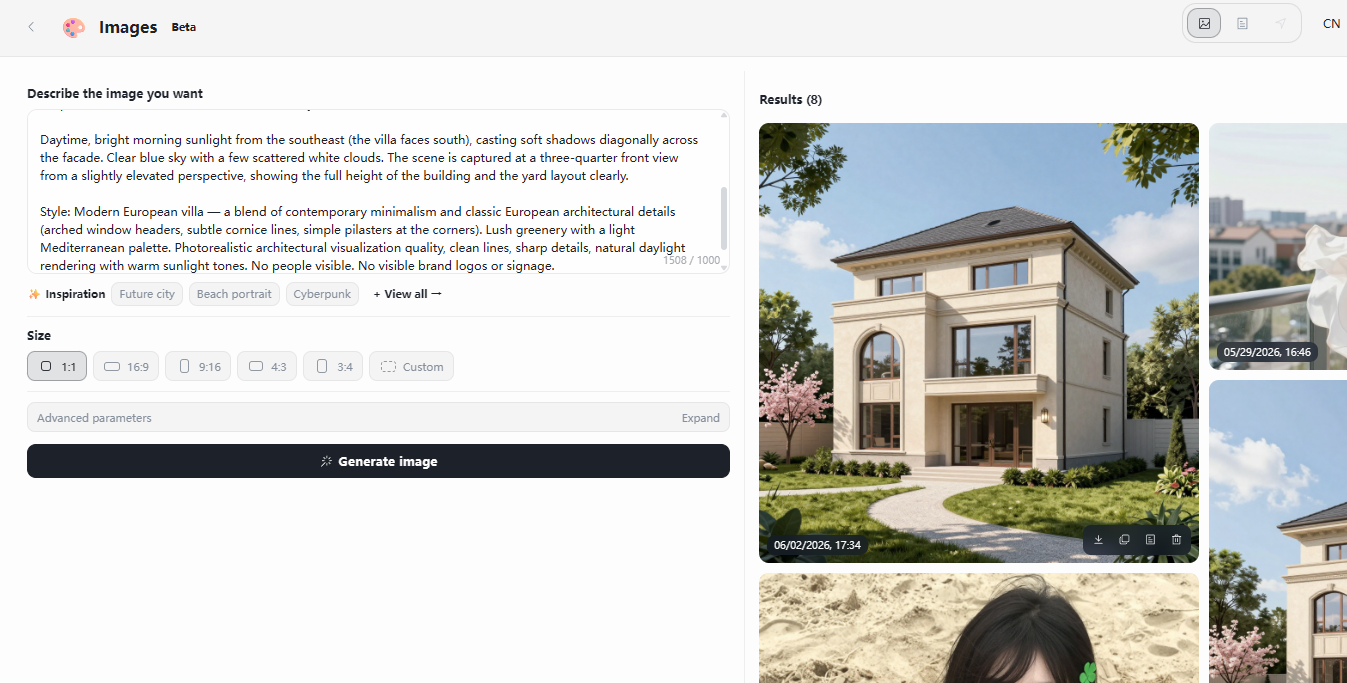
Parameter Reference
1. Size
- Controls the aspect ratio and resolution of the output.
- Presets: 1:1, 16:9, 9:16, 3:2, 4:3, or a custom resolution.
- Higher resolution yields more detail at the cost of longer render times.
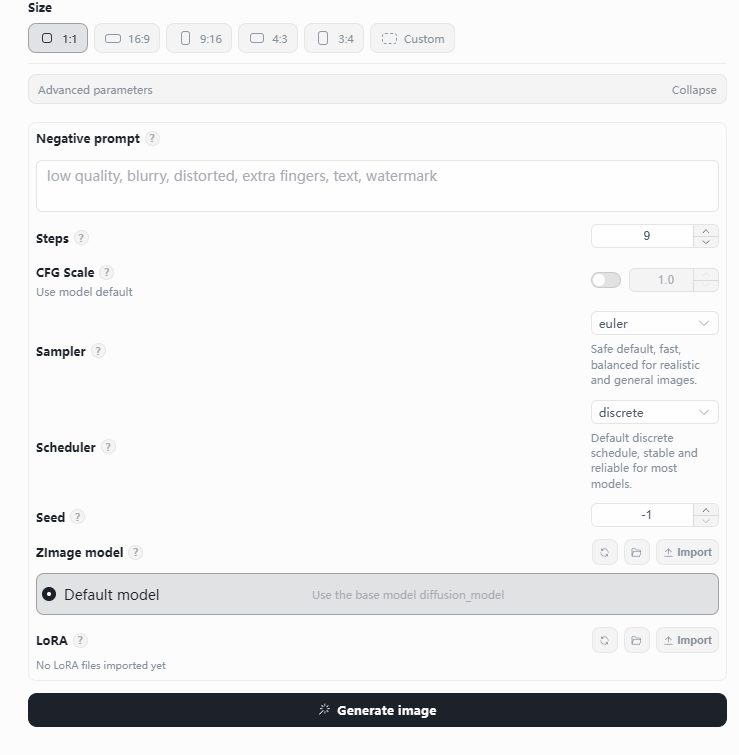
2. Negative Prompt
- Tells the model what not to include.
- Example:
low quality, blurry, deformed, extra fingers, text, watermark— to suppress common artifacts. - Particularly useful for keeping the image clean and improving anatomical accuracy.
3. Steps
- Number of diffusion iterations. Higher values produce more detail but take longer.
- Default:
9. - Returns diminish after a certain point — more steps is not always better.
4. CFG Scale (Classifier-Free Guidance)
- Controls how strictly the model adheres to your prompt.
- Higher values stick closer to the prompt but may look oversaturated or unnatural; lower values are looser and softer.
- Default:
1.0.
5. Sampler
- The algorithm that turns noise into the final image step by step.
- Default:
euler— a classic, fast, stable sampler well-suited to photorealistic styles. - Alternatives such as DPM++, DDIM, and UniPC offer different speed/quality trade-offs.
6. Scheduler
- Controls the noise-decay schedule, affecting smoothness and detail.
- Default:
discrete— stable and reliable across most models. - Continuous schedulers (e.g.,
karras,exponential) can sharpen edges and improve texture.
7. Seed
- Controls the randomness of the result. With the same seed and parameters, the output is virtually identical.
-1generates a new random seed each run.- To reproduce a specific image, record and fix its seed value.
8. ZImage Model and LoRA
- ZImage Model: the base generation model (e.g., SDXL, SD 1.5, Flux). The default is Default Model.
- LoRA: lightweight fine-tunes that bias the output toward a particular style, character, or outfit.
- "No LoRA imported" means no extensions have been loaded yet.
Generation History
The history panel stores previous prompts, making it easy to iterate or save high-quality prompts.
- Click a history entry to load its prompt back into the input box.
FAQ
Q: Why can't my computer generate images?
- Confirm that a local text-to-image model is installed. If not, install one first.
- Check your hardware against the model's requirements — image generation has higher demands than chat.
- If hardware is sufficient but generation still fails, you may have too many models running and competing for resources. Stop the models you aren't using: Models page → review the running models → stop the ones you no longer need.
Q: Why does the generated image look different from what I imagined?
There are four common causes:
- The prompt is too vague — the model interprets the literal text and cannot read your mind. Compare "a cat" vs. "an orange tabby cat sleeping on a windowsill in afternoon light" — specificity matters.
- Defaults fill in the blanks — anything you don't specify (composition, lighting, style) is decided by the model, and its defaults rarely match what's in your head.
- Recognition vs. understanding — the model knows a hand has five fingers, but it does not understand how fingers naturally rest. Complex spatial relationships, perspective, and text are common weak points.
- Subtext is invisible — emotional qualities like "lonely," "dramatic," or "warm" must be stated explicitly; the model cannot infer them.
Q: Why does generated text come out garbled?
Text-to-image models do not actually read text — they treat letters as "shapes" to be drawn.
Analogy: Asking the model to write the word "Hello" is like asking someone who doesn't speak English to copy unfamiliar strokes — the result is usually messy.
Tips to improve text in generated images:
- Minimize the amount of text in the image.
- If text is essential, keep it short and use a simple font.
- For best results, add text in a post-processing tool like Photoshop rather than asking the model to draw it.