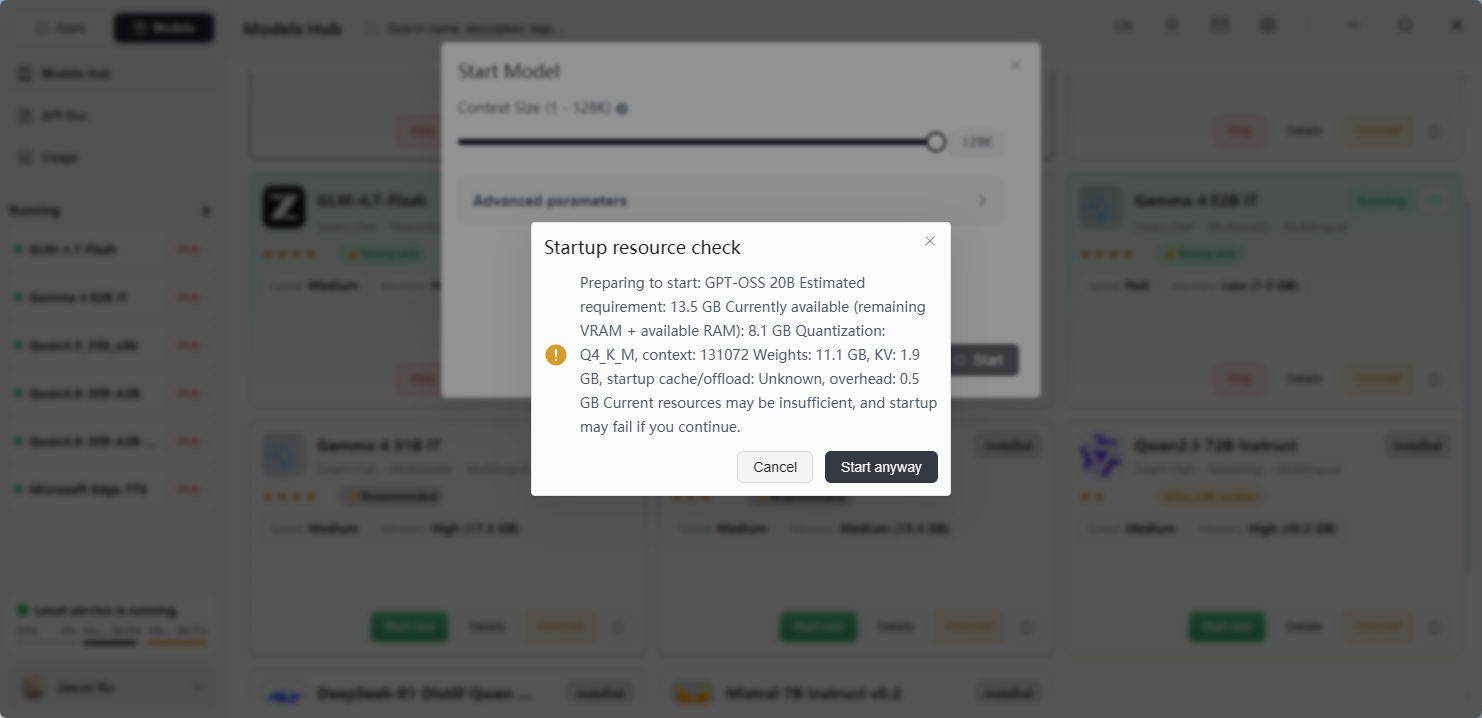
Local Service Monitoring
Herdsman pins a local service status panel to the bottom-left corner of the interface so you can monitor service health and system resource usage at a glance.
Status Indicators
- Green dot + Local service running — the service is healthy.
- CPU usage — current CPU utilization.
- Memory usage — current RAM utilization.
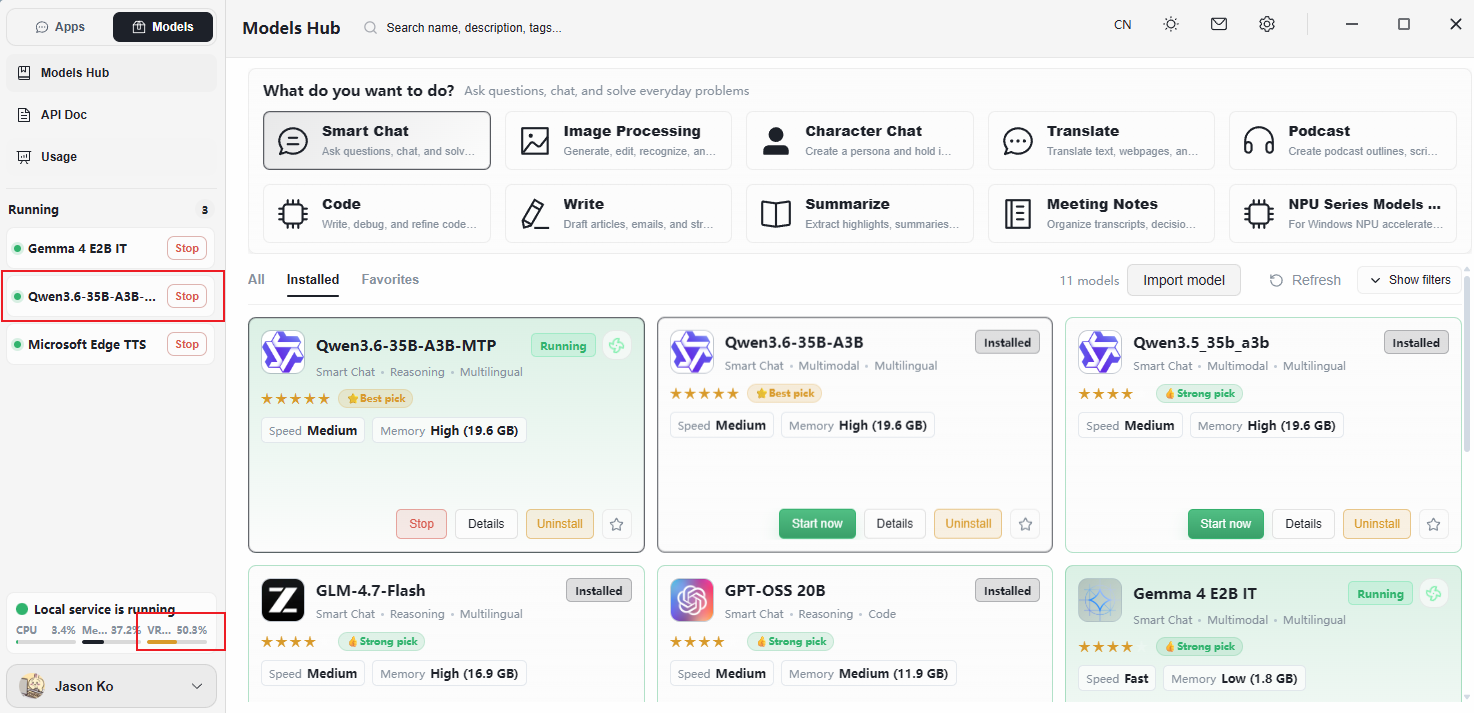
- GPU usage — current VRAM utilization for the loaded model (shows only the load footprint, not the additional usage during inference).
Tip:
- A running model consumes GPU resources in two parts: loading the model (baseline) and answering questions (additional).
- Even when idle, a launched model continues to occupy a portion of VRAM.
- During generation, the model consumes additional GPU resources.
- Recommendation: stop unused models to free up GPU resources for other applications.
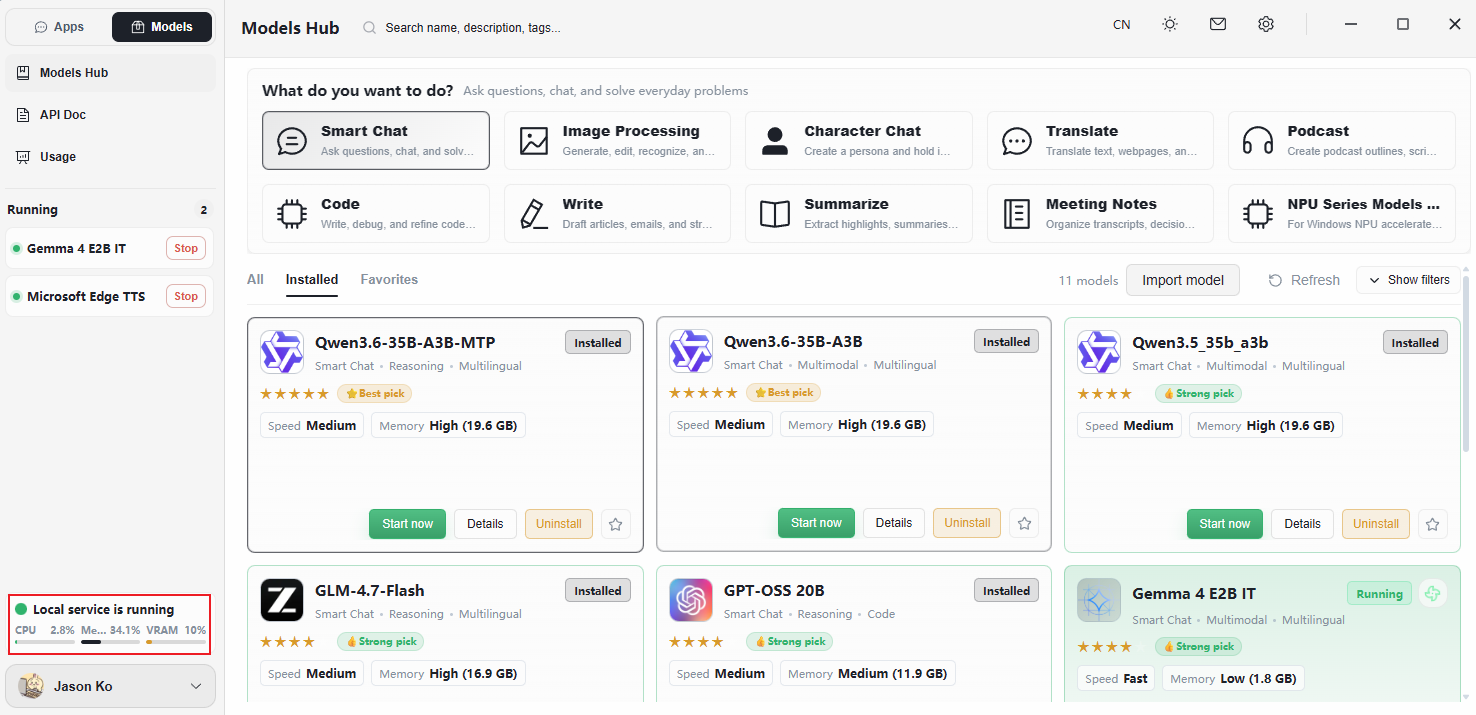
Resource Precheck on Launch
What it is
When you launch a model, Herdsman automatically checks whether your machine has enough VRAM and RAM to run it. If resources are insufficient, a warning prompt appears.
How to resolve it
Option 1 — Free up resources (recommended)
- Stop other models
- Stop models that are loaded but not in use.
- This releases occupied VRAM.
- Close other GPU-heavy programs
- Games, video editors, AI art tools, etc.
- Browsers (especially with many open tabs).
Option 2 — Lower the model's resource demands
- Reduce the context length
- Drop the context size from
131072to32768(or smaller). - Adjust the slider on the launch screen before clicking Launch.
- Drop the context size from
- Choose a smaller model
- 72B models are too large for most consumer hardware. Try 7B or 4B variants instead.
- Smaller models use fewer resources and run faster.