

Installing Herdsman
This guide walks you through downloading, installing, signing in, updating, and configuring the model path for Herdsman.
System Requirements
Systems that do not meet the requirements above cannot launch Herdsman.
Download
-
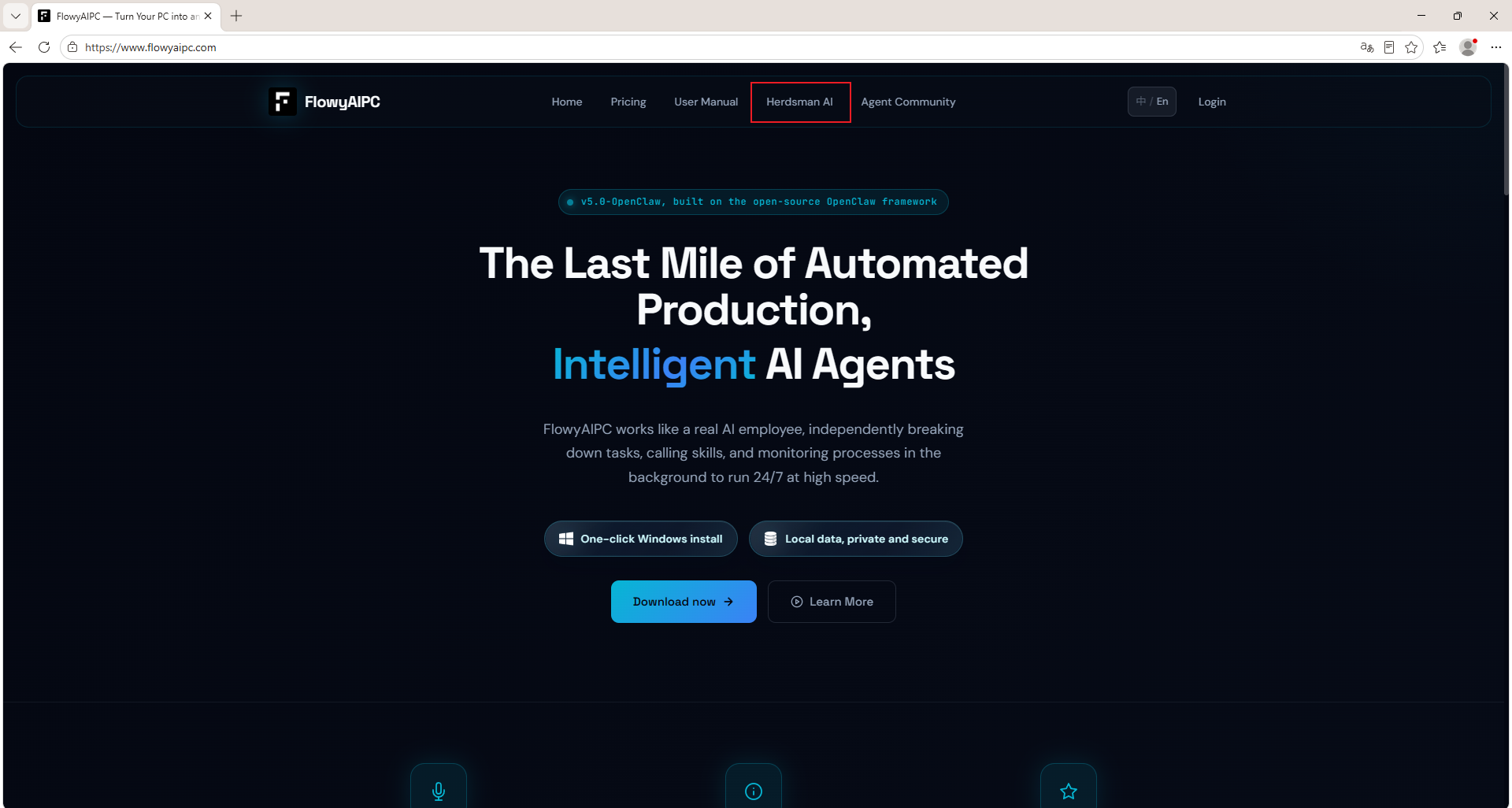
Visit the FlowyAIPC Herdsman Local Inference Engine page.
-
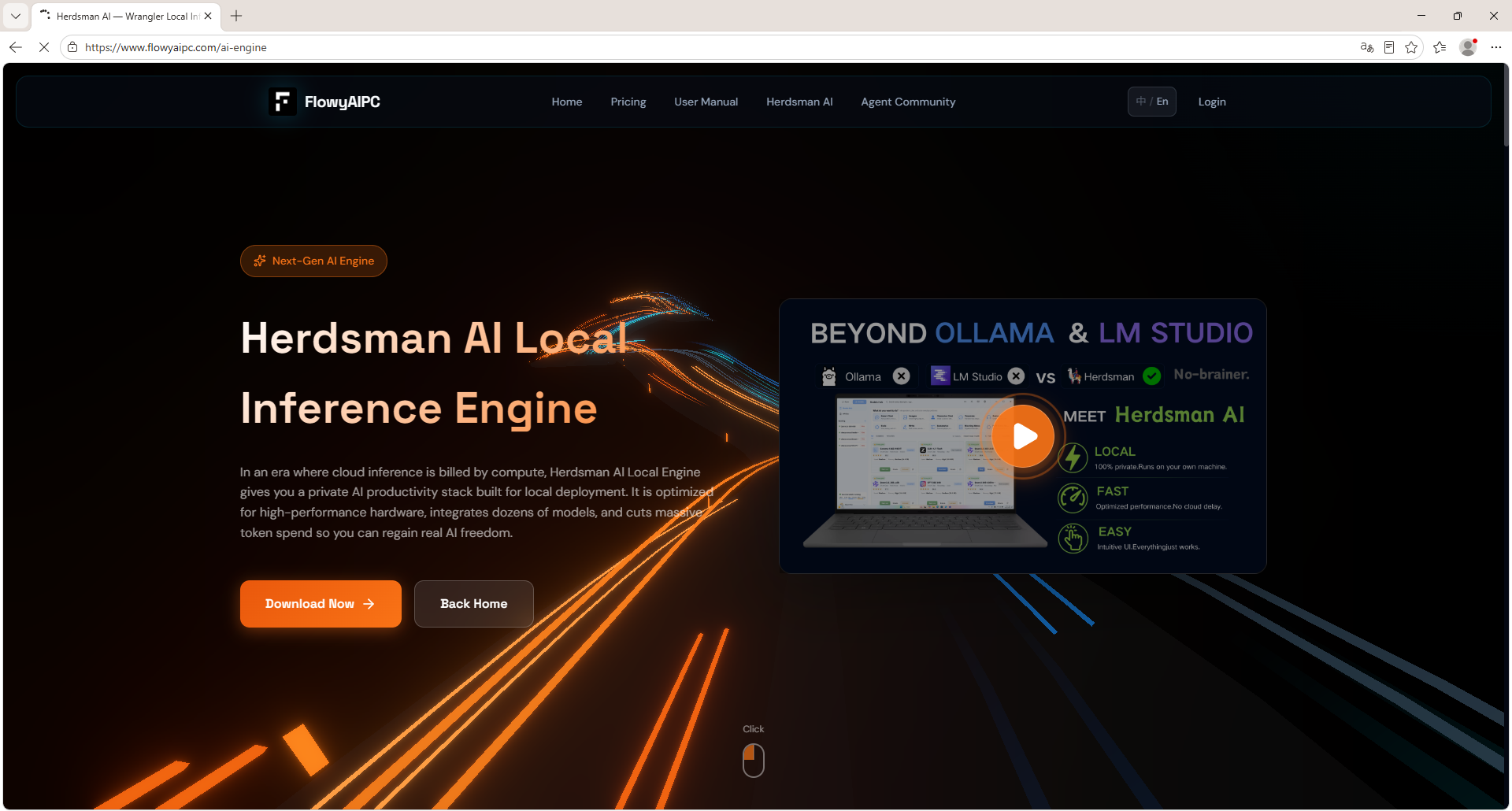
Click Download to save the installer.
Installation
Herdsman is a portable application — double-click the executable to launch it. No desktop shortcut is created automatically, so we recommend keeping the installer on your desktop for easy access.
-
Double-click the executable to open the Herdsman sign-in screen.
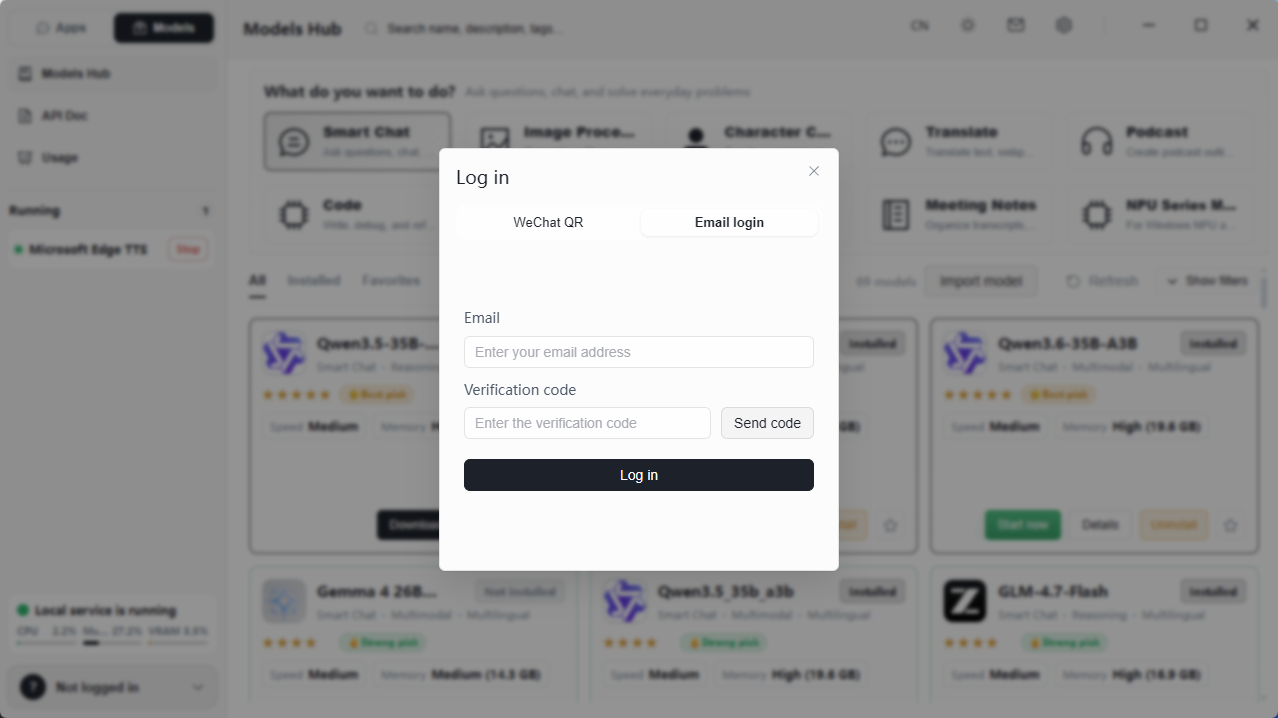
Herdsman supports two sign-in methods: WeChat QR code and email verification. A new account is created automatically on first sign-in.
-
After signing in, the Onboarding Guide appears. First-time users are encouraged to follow the guide to get familiar with Herdsman.
Updates
When connected to the internet, Herdsman automatically detects new versions. To update:
- Click Install Update when the update prompt appears.
Configuring the Model Storage Path
Local models can consume significant disk space. The default path is on the C: drive — we strongly recommend changing it to another drive before downloading any models.
-
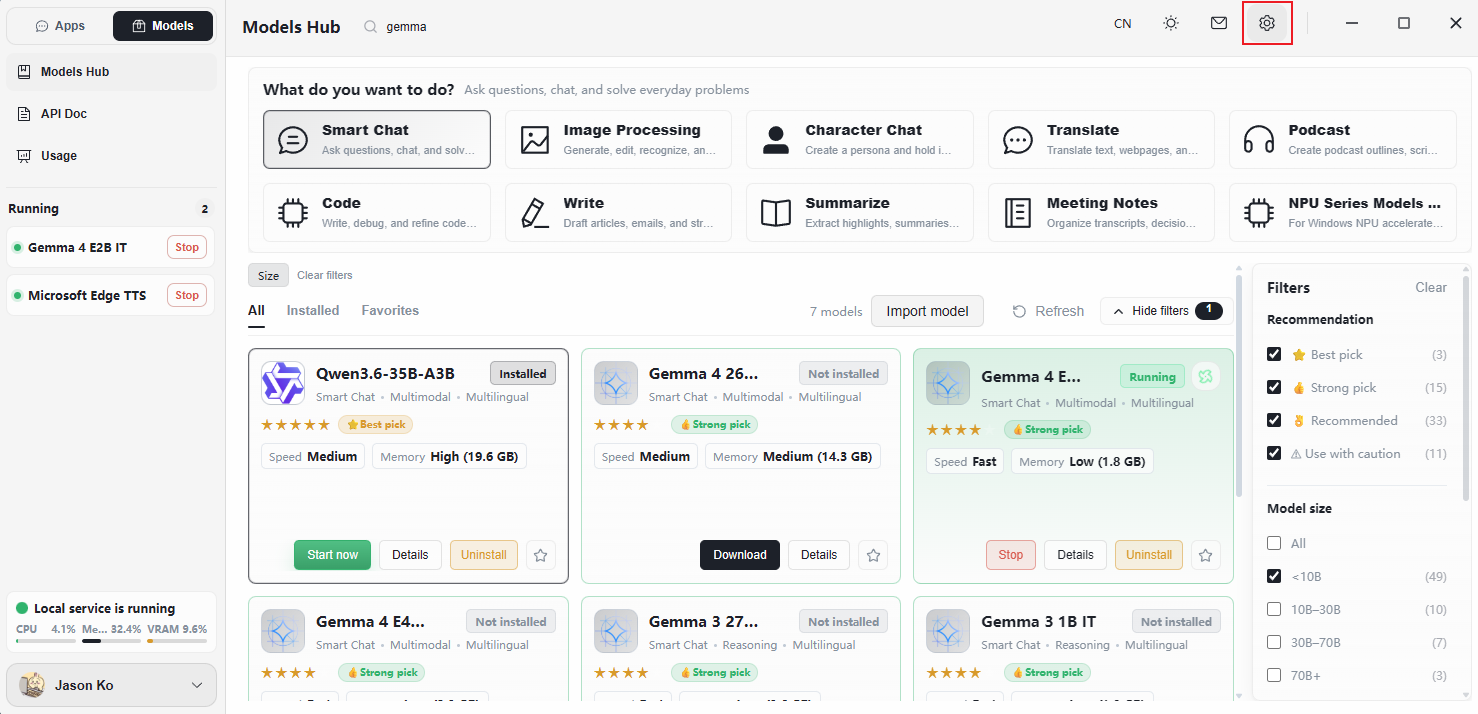
Click the gear icon to open Settings.
-
Select Storage from the sidebar.
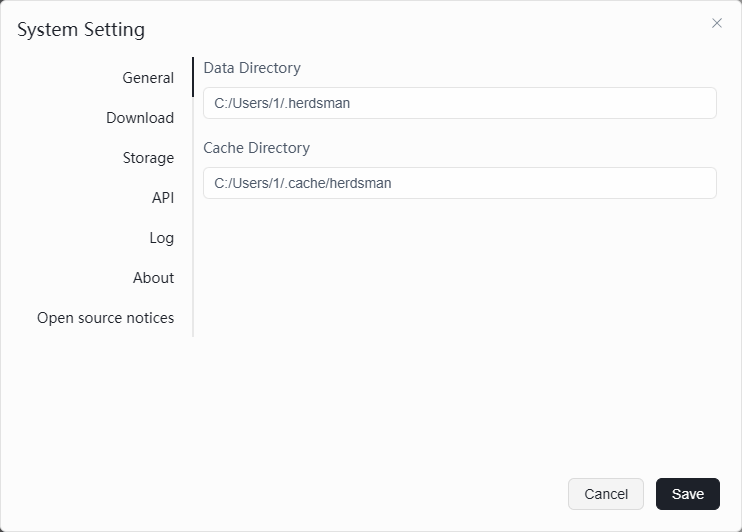
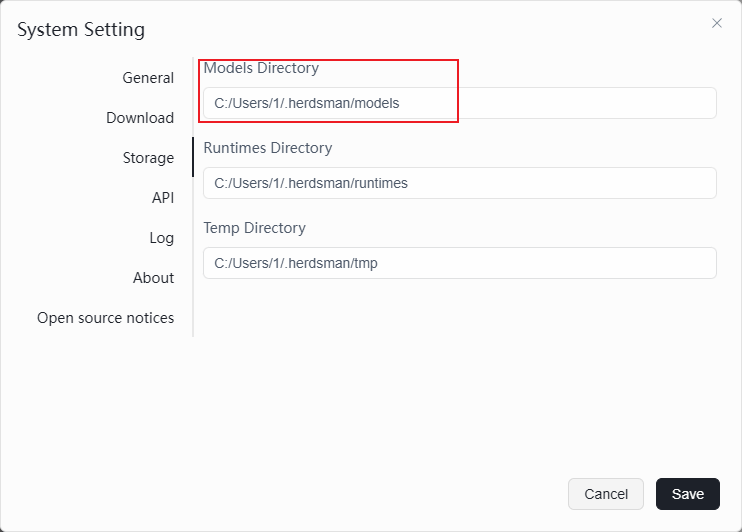
-
Update the Model Directory:
- You can enter the path to an existing folder.
- If the path does not exist, Herdsman creates it automatically.
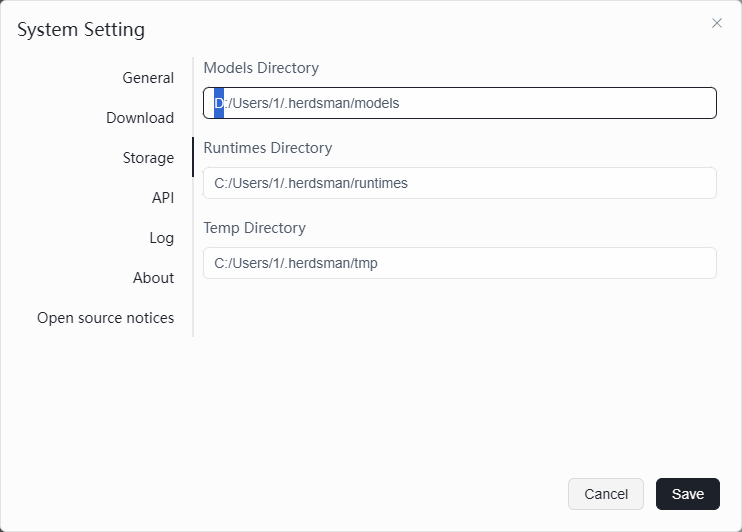
-
Save your changes:
- If models have already been downloaded — Herdsman automatically migrates them to the new path.
- If no models exist yet — the new path is saved immediately.