

Knowledge Base
Access the Knowledge Base
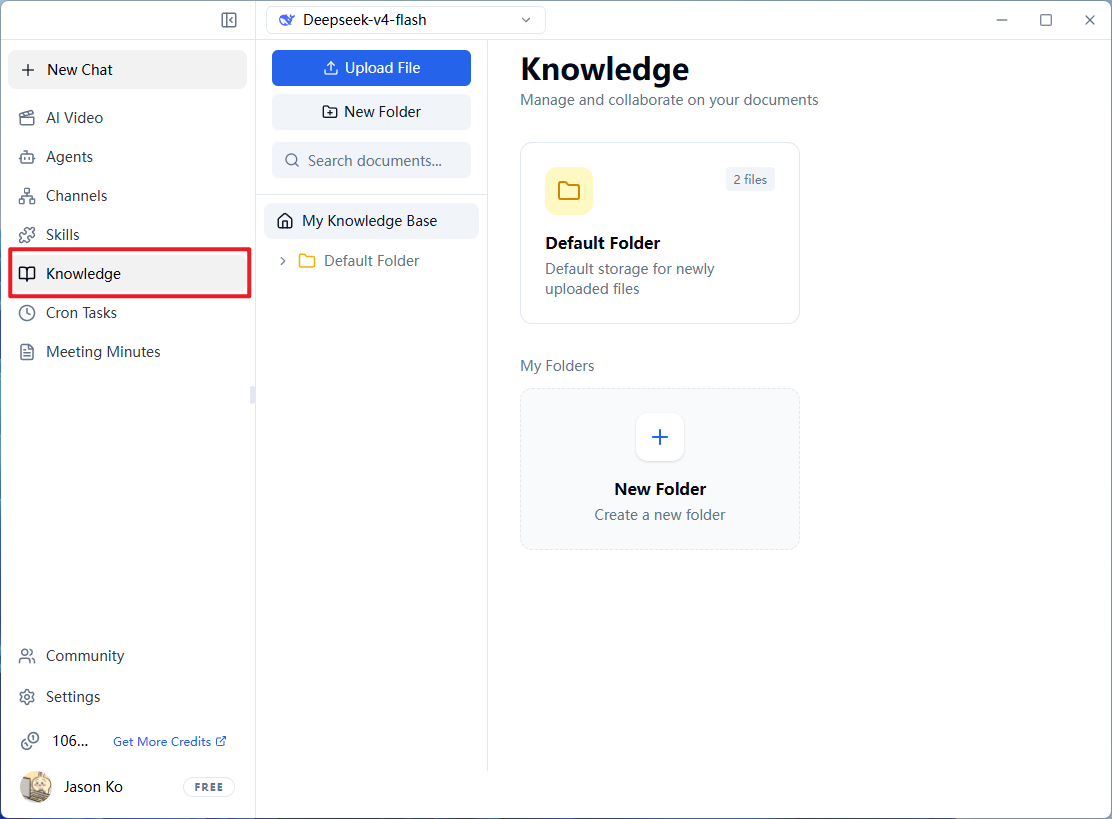
- Click
Knowledge Basein the left navigation bar to enter the management page. - The top of the page displays
Upload FileandNew Folderbuttons. - The right area shows the
Default Folder(default storage location for new users) andMy Folders.
Upload Documents
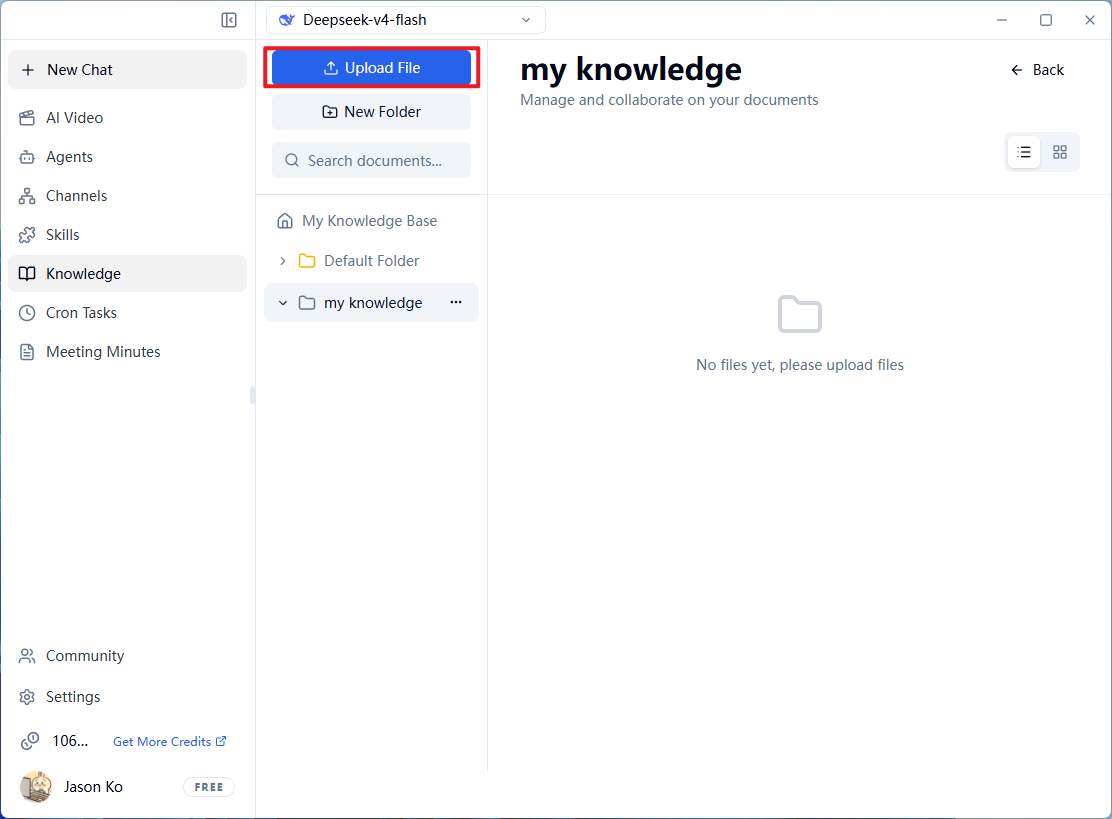
- Click the blue
Upload Filebutton at the top.
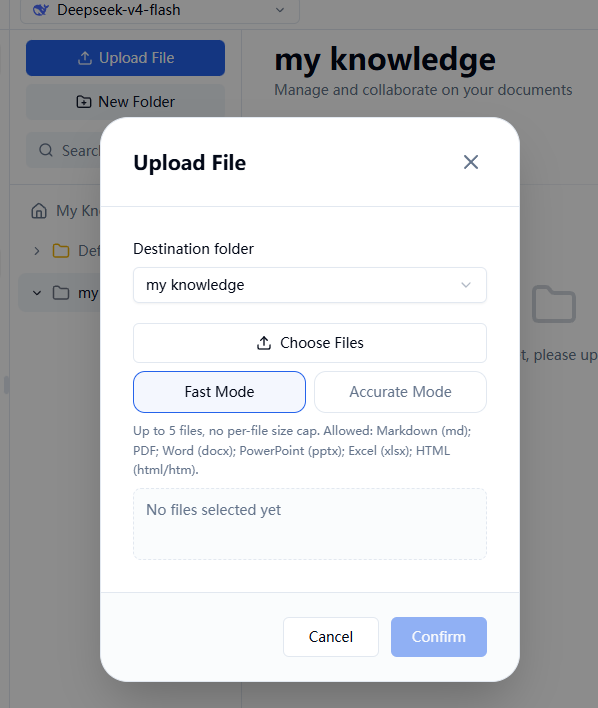
- Configure upload options in the pop-up window:
- Upload to Folder: Select the target folder for the file (default is "Default Folder").
- Processing Mode:
Fast Mode: Suitable for quick preview and basic retrieval.Precision Mode: Suitable for scenarios requiring deep understanding and high-precision Q&A.
-
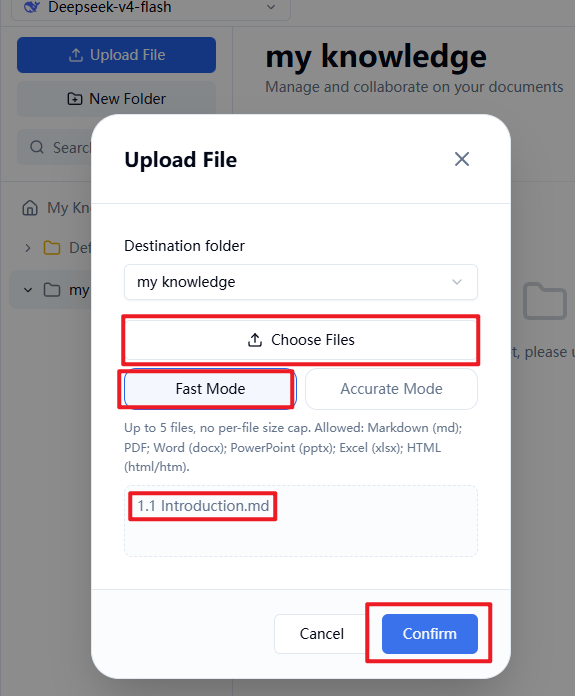
Click
Select Fileto choose documents from your local device. -
After confirming the files, click
Confirmin the bottom-right corner to start uploading.
Supported File Formats
The system supports the following formats, with a maximum of 5 files per upload and no limit on individual file size:
View File Status
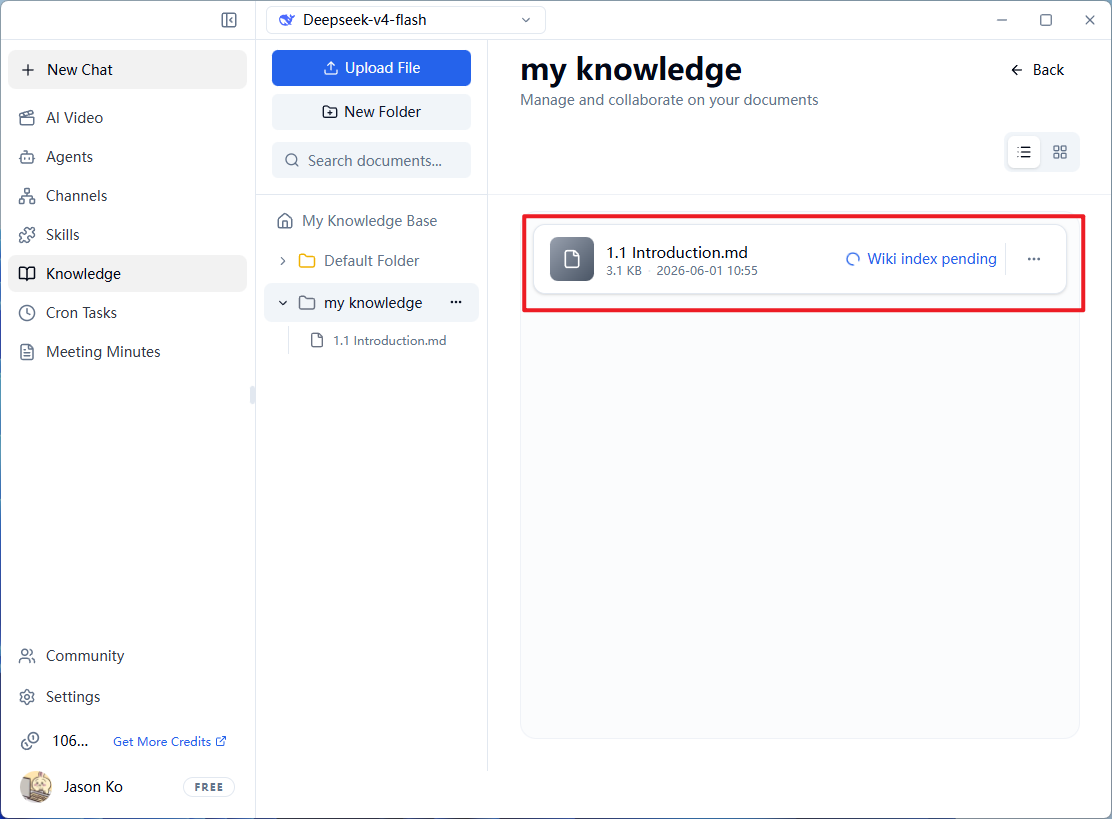
After successful upload, the file will appear in the folder list. The system will automatically index and process the file:
- Processing: The right side of the file shows "Knowledge Enhancement Processing". At this time, only basic search may be supported, and deep Q&A is temporarily unavailable.
- Processing Complete: Once the status updates, full AI Q&A and retrieval based on the file content becomes available.
Bind to an Agent for Use
Uploaded and processed knowledge base documents can be attached to a specific AI Agent, granting it the ability to answer questions based on private documents.
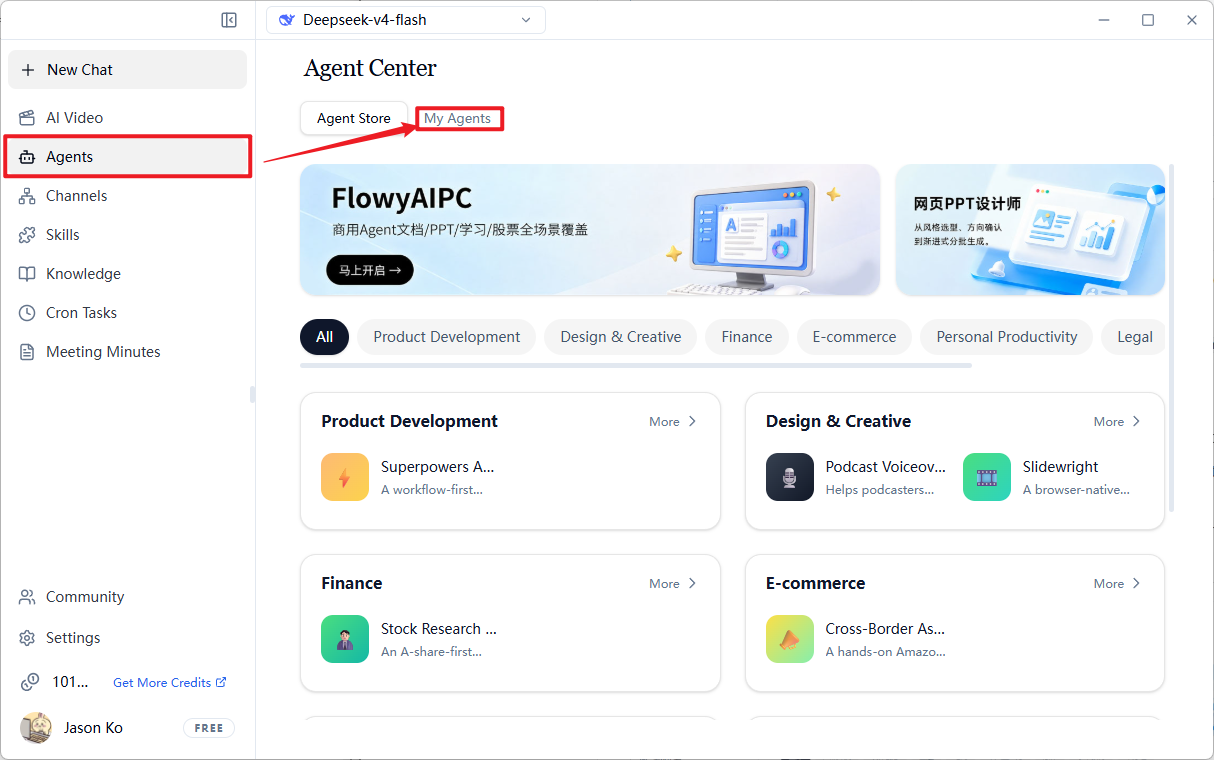
- Click
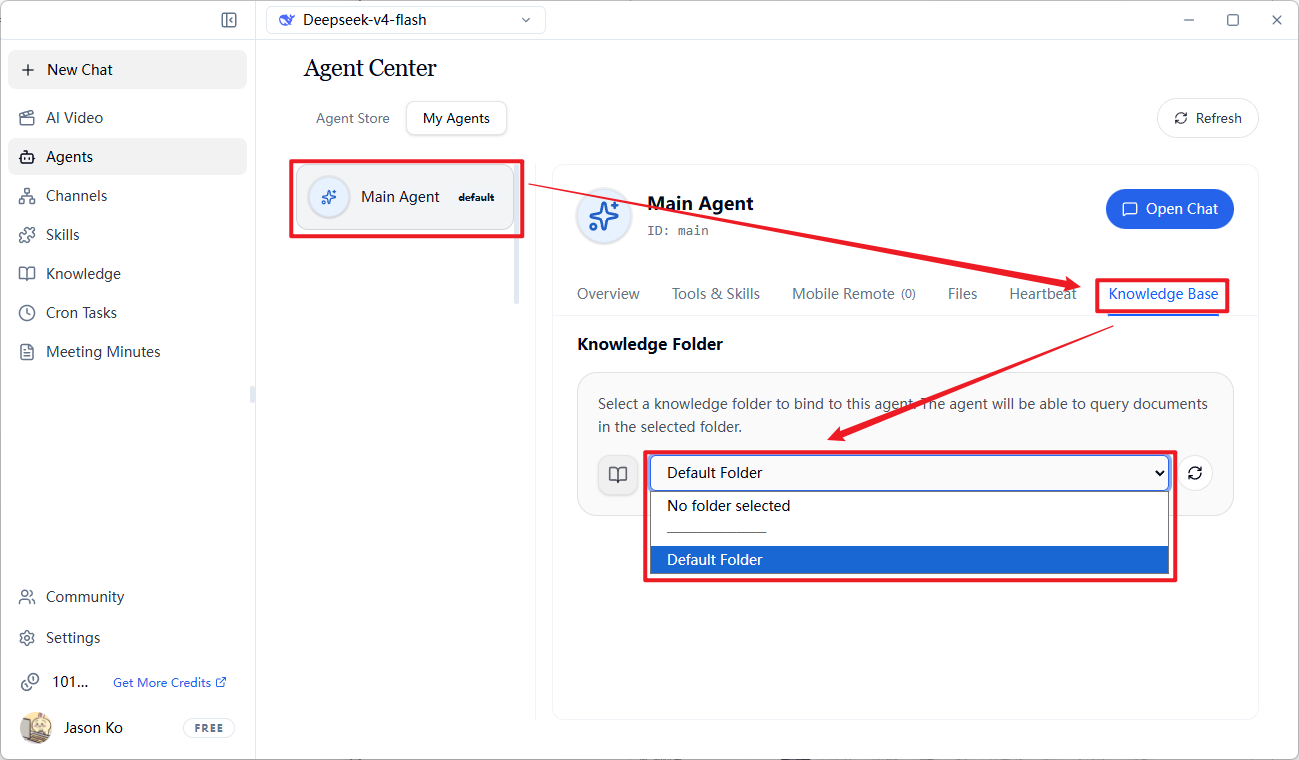
Agentsin the left navigation bar, and switch to theAgent Managementtab at the top. - Click on the Agent card you want to configure (e.g.,
Main Agent). - In the Agent detail page's top navigation bar, click the
Knowledge Basetab. - In the "Knowledge Base Folder" area, click the dropdown menu and select the folder containing your uploaded documents (e.g.,
Default Folder). - Once bound, the Agent can read and answer questions about the documents in that folder.
Frequently Asked Questions
Q: The Upload button is grayed out, or "Confirm" cannot be clicked?
Please check whether a file has been successfully added via the "Select File" button. The "Confirm" button is only highlighted and available when the file list is not empty.
Q: What are "Fast Mode" and "Precision Mode"?
- Fast Mode: Faster processing speed, suitable for extracting document summaries or performing simple keyword searches.
- Precision Mode: Slightly longer processing time, but provides deeper understanding of document details, suitable for complex logical reasoning and detailed Q&A.
Q: How long will it show "Knowledge Enhancement Processing" after uploading a file?
Processing time depends on the file size and selected mode. Typically, small files (e.g., a few-page PDFs) only take a few seconds, while large files or Precision Mode may take several minutes. Please wait patiently for the status to change.
Q: The Agent's answers are inaccurate after binding a knowledge base?
Please confirm whether the file status in the knowledge base folder has changed to "Processing Complete". If the file is still being processed, the Agent may not be able to obtain complete information. Additionally, trying to switch to "Precision Mode" and re-uploading the file may improve answer accuracy.