

ASR Playground
ASR Playground is the dedicated testing interface for automatic speech recognition models (such as Sherpa-ONNX) in Herdsman. Upload audio files or record from a microphone to quickly evaluate how the model transcribes speech.
Launching an ASR Model
-
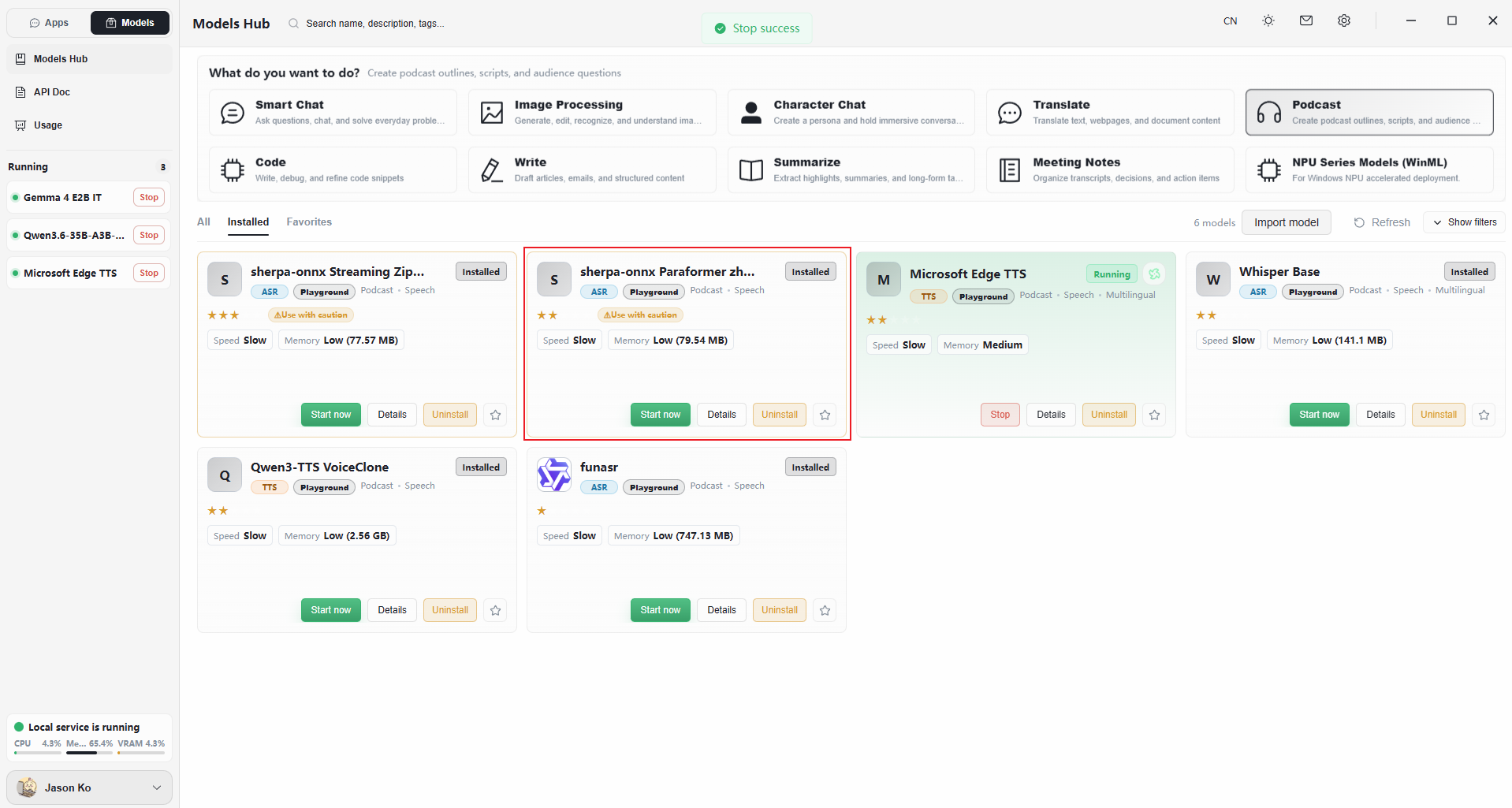
Open the Models page.
-
Locate a model tagged ASR or Speech Recognition (e.g.,
sherpa-onnx Chinese Non-Streaming Paraformer Small). -
Click Launch Now on the model card.
-
Wait for the status to switch to Ready or Running, then click the card to open the Playground.
Interface Overview
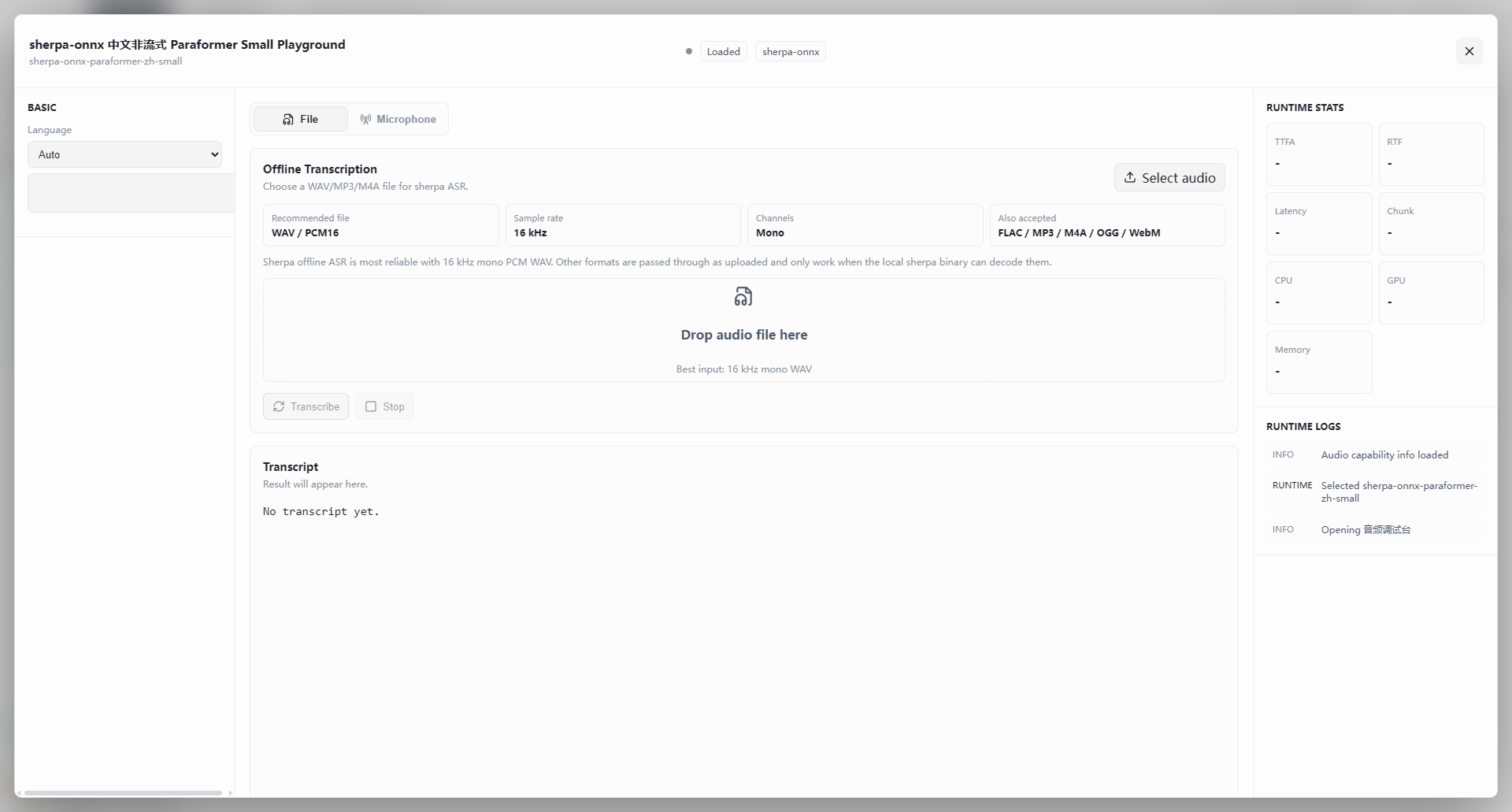
Basic Settings and Input
- Language (left) — choose from the dropdown (e.g., Auto). Selecting a specific language can improve accuracy.
- Input mode (top tabs):
- File — process a local audio file (WAV / MP3 / M4A, etc.).
- Microphone — record audio live for recognition.
File Transcription Parameters
- Recommended input — 16 kHz mono PCM WAV for the most reliable results.
- Compatible formats — FLAC, MP3, M4A, OGG, WebM (requires backend decoder support).
- How to run — drop the file into the upload area or click Choose Audio, then click Transcribe.
Reading the Results
After upload and transcription, the interface updates as follows:

Transcript Output
- Character count — shown under the result title (e.g.,
77 characters). - Text — the full transcript appears in the text box below.
Runtime Monitor (right sidebar)
Once transcription completes, performance data appears in the right panel:
- Latency — total processing time (e.g.,
1726 ms). - Hardware usage:
- CPU — utilization during the run (e.g.,
7%). - GPU — GPU utilization (e.g.,
4%). - Memory — current memory consumption (e.g.,
26.85 GB).
- CPU — utilization during the run (e.g.,
Run Log (right bottom)
The log records details for the operation:
INFO Transcription complete in 1726ms— confirms successful completion and total elapsed time.INFO Transcription requested: ripple_tts_cloned.wav— confirms the file being processed.
FAQ
Q: Why doesn't my MP3 file return a result?
- Sherpa offline ASR has specific audio format requirements. Although the UI mentions MP3 support, this depends on the backend decoder. Best practice: convert the audio to 16 kHz mono WAV before uploading.
Q: How can I tell if the model is running fast enough?
- Check Latency and RTF (real-time factor) on the right. For a 10-second audio clip with a latency of
1726 ms(1.7 seconds), the model is processing roughly 6× faster than real time — excellent performance.