

TTS Playground (Voice Cloning)
TTS Playground is the dedicated testing interface for speech synthesis models (such as Qwen3-TTS) in Herdsman. This guide focuses on the Voice Clone feature: provide a reference audio clip and have the model speak new text in the cloned voice.
Launching a TTS Model
-
Open the Models page.
-
Locate a model tagged TTS or Speech Synthesis (e.g.,
Qwen3-TTS Voice Clone). -
Click Launch Now on the model card.
-
Wait for the status to switch to Ready, then click the card to open the Playground.

Interface Overview
The TTS Playground is divided into a parameter panel (left), a script workspace (center), and a runtime monitor (right).
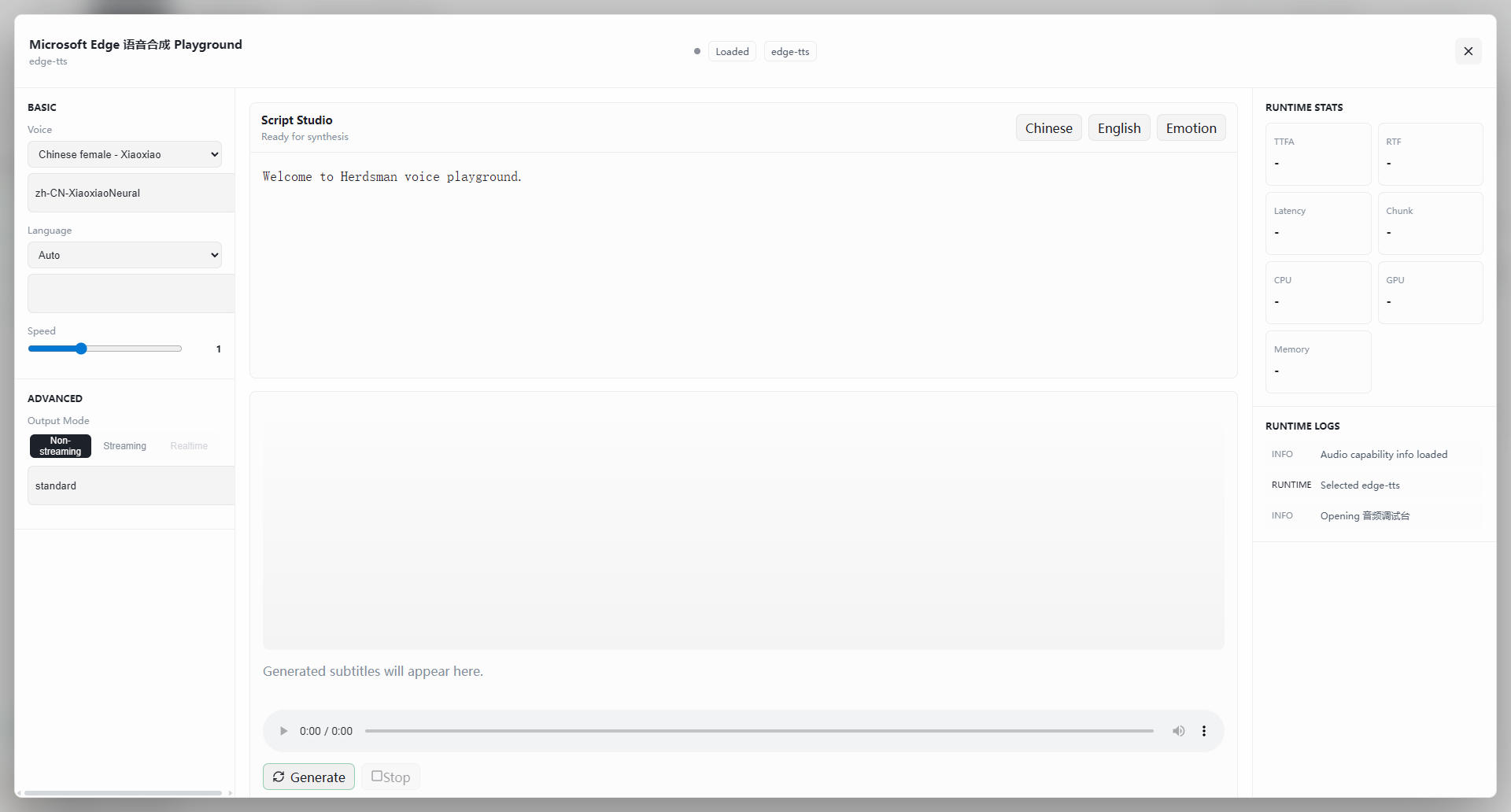
Parameters (left sidebar)
- Basic settings:
- Language — dropdown (e.g., Auto) selecting the language of the synthesis text.
- Speed — slider (default
1). Drag right to speed up, left to slow down.
- Advanced settings:
- Output mode:
- Non-streaming (default) — waits until the full audio is generated, then plays it. Best for short texts.
- Streaming / Realtime — plays as audio is generated. Lower latency (subject to model support).
- Output mode:
- Voice (Clone core):
- Reference Audio — the voice you want to imitate. Accepts a local file path, a URL, or Base64-encoded data.
- Reference Text — the exact transcript of the reference audio. Providing an accurate transcript significantly improves cloning accuracy.
Script Workspace (center)
- Text input:
- Enter the text you want the model to speak in the top text box.
- Example: "Hello — how is your day going? Welcome to Herdsman voice playground."
- Supports mixed Chinese-English text and punctuation-driven pauses.
- Tags — the top-right corner provides Chinese, English, and Emotion tags to quickly switch input hints or adjust style.
- Output area:
- Caption / waveform — generated captions appear here.
- Audio player — standard controls (play/pause, scrub, volume) at the bottom.
- Action buttons:
- Generate — start synthesis.
- Stop — cancel the current job.
Runtime Monitor (right sidebar)
- Runtime status:
- TTFA / RTF — time-to-first-audio and real-time factor.
- Latency / chunks — generation latency and chunk size.
- Hardware usage — live CPU, GPU, and memory monitoring.
- Run log:
- Shows model load events (e.g.,
Selected qwen3-tts-voiceclone) and audio initialization details.
- Shows model load events (e.g.,
Voice Cloning Workflow
- Prepare assets:
- A clean reference audio clip (5–10 seconds is ideal).
- The exact reference text spoken in the clip.
- Configure cloning:
- Enter the audio path or URL in Reference Audio.
- Enter the transcript in Reference Text.
- Write your script — type the text you want the model to read in the center workspace.
- Adjust parameters — change Speed if needed (e.g.,
1.2for slightly faster delivery). - Generate and review:
- Click Generate at the bottom left.
- Use the audio player to listen. If the voice doesn't sound right, check that the reference audio is clean and verify that the reference text matches it exactly.
Notes:
- Reference text matters. For voice cloning, the reference text must accurately match the reference audio — mismatches degrade cloning quality.
- Audio format support. Reference audio typically supports WAV and MP3, depending on the model backend.