

Settings
The Settings panel is organized into the following modules: General, Download, Storage, API, and Log.
General
Configure the core directories Herdsman uses at runtime. We recommend pointing these to a drive with plenty of free space, since model files can become large.
-
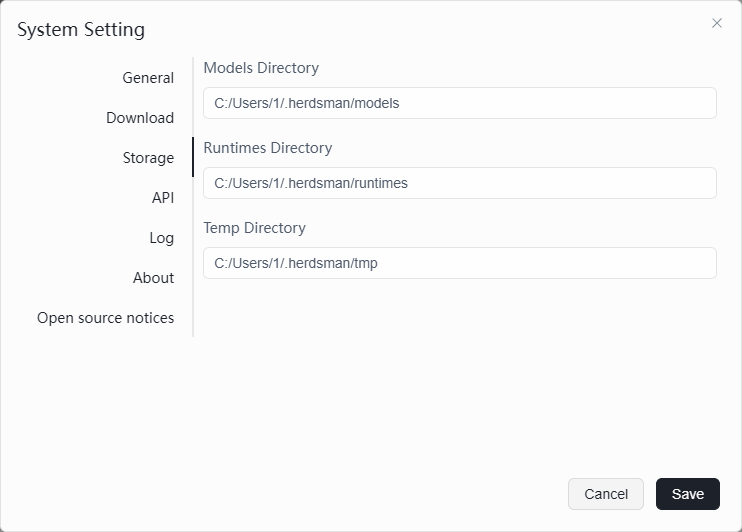
Model Directory
- Default path:
C:/Users/<YourUsername>/.herdsman/models - Description: stores downloaded LLM files (such as
.gguffiles). - Recommendation: model files are typically several GB to tens of GB. We strongly recommend changing this path to a non-system drive (e.g., D: or E:).
- Default path:
-
Runtime Directory
- Default path:
C:/Users/<YourUsername>/.herdsman/runtimes - Description: stores runtime dependencies (Python environment, inference engines, etc.).
- Default path:
-
Temp Directory
- Default path:
C:/Users/<YourUsername>/.herdsman/tmp - Description: stores temporary files used during downloads and extraction.
- Default path:
Download
Tune the download strategy. These settings are especially useful for unstable networks or very large models.
-
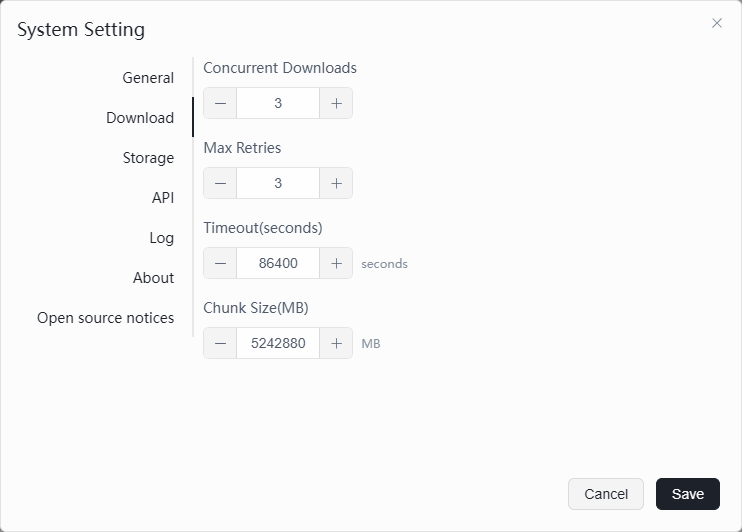
Concurrent Downloads
- Default:
3 - Description: maximum number of simultaneous downloads.
- Recommendation: keep the default. Lower it to
1if your bandwidth is limited.
- Default:
-
Max Retries
- Default:
3 - Description: number of automatic retry attempts after a failed download.
- Default:
-
Timeout
- Default:
86400seconds (24 hours) - Description: maximum duration allowed for a single download task.
- Recommendation: keep the timeout generous — large model downloads can take a long time and should not be interrupted by an early timeout.
- Default:
-
Chunk Size
- Default:
5242880(about 5 MB) - Description: data chunk size requested per HTTP call.
- Note: the UI label says MB, but the value
5242880is in bytes (5 × 1024 × 1024 = 5 MB). This is the expected representation.
- Default:
Storage
Configure the data root and cache directories used by Herdsman.
-
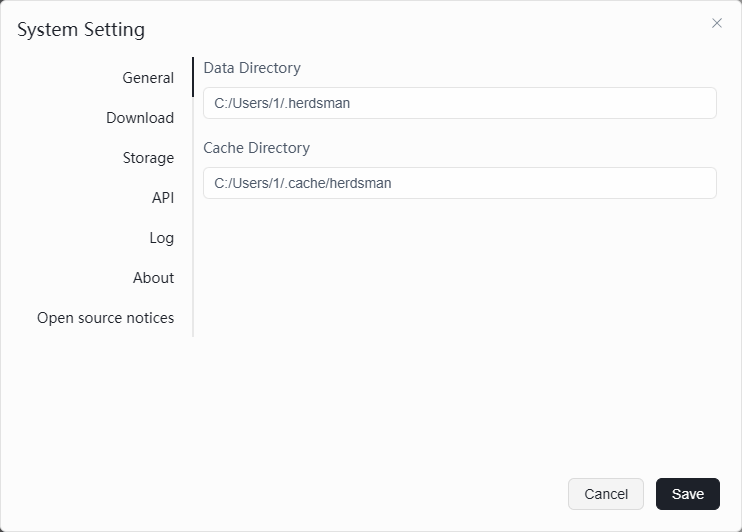
Data Directory
- Default path:
C:/Users/<YourUsername>/.herdsman - Description: the main data directory — holds configuration, database files, and other core data.
- Default path:
-
Cache Directory
- Default path:
C:/Users/<YourUsername>/.cache/herdsman - Description: stores cached downloads (e.g., from HuggingFace and other sources). Clearing this directory frees disk space but may cause subsequent downloads to take longer.
- Default path:
API
Configure the local API service that allows other devices to connect.
-
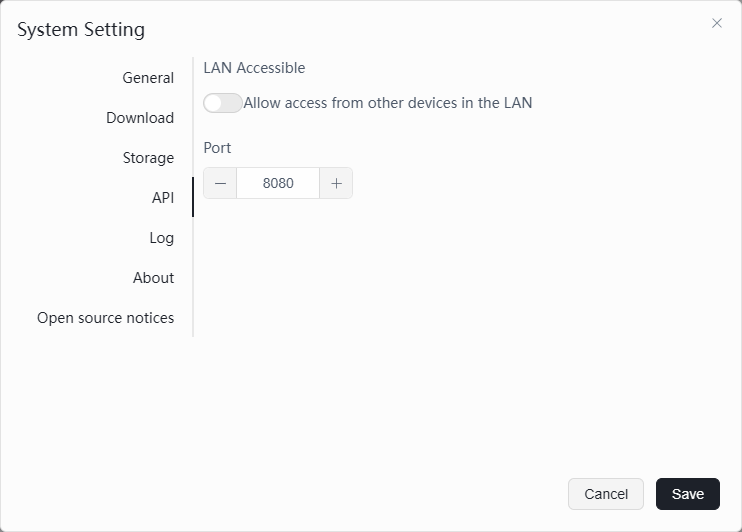
LAN Access
- Switch: allows other devices on the local network to connect.
- Description: when enabled, phones, tablets, and other computers on the same Wi-Fi can use Herdsman's model service via your machine's IP address.
- Recommendation: keep this off if you only use Herdsman locally — saves resources and improves security.
-
Port
- Default:
8080 - Description: the port the API service listens on.
- Note: when LAN access is enabled, other devices connect using
http://[your-IP]:8080. If the port is already in use, change it (for example, to8081).
- Default:
Log
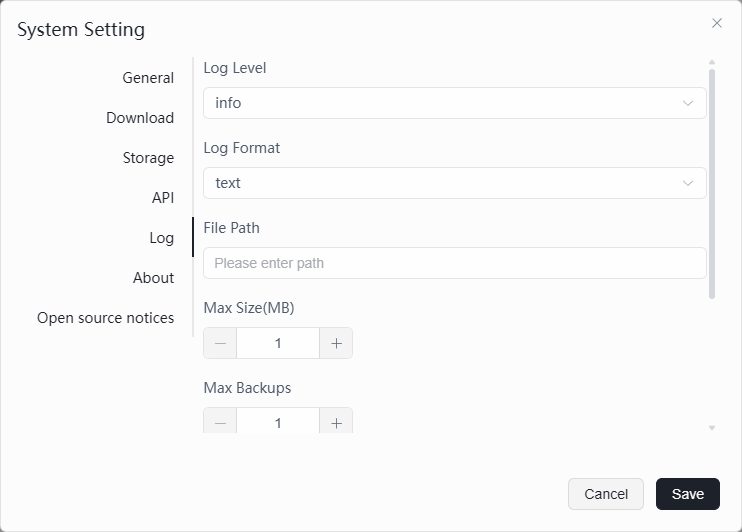
Configure how Herdsman records runtime logs (used primarily for troubleshooting).
-
Log Level
- Default:
info - Options: typically
debug,info,warning,error. - Recommendation: keep
infofor daily use. Switch todebugwhen investigating crashes or errors to capture more detail.
- Default:
-
Log Format
- Default:
text - Description: file format for the log.
textis human-readable;jsonis best for automated parsing.
- Default:
-
File Path
- Description: the path where the log file is saved. Leave blank to use the default location.
-
Max Size (MB)
- Default:
1MB - Description: maximum size of a single log file. When exceeded, a new file is rotated in.
- Default:
-
Max Backup Count
- Default:
1 - Description: number of historical log files kept. Limits log growth so they cannot fill the disk indefinitely.
- Default:
Other Menu Items
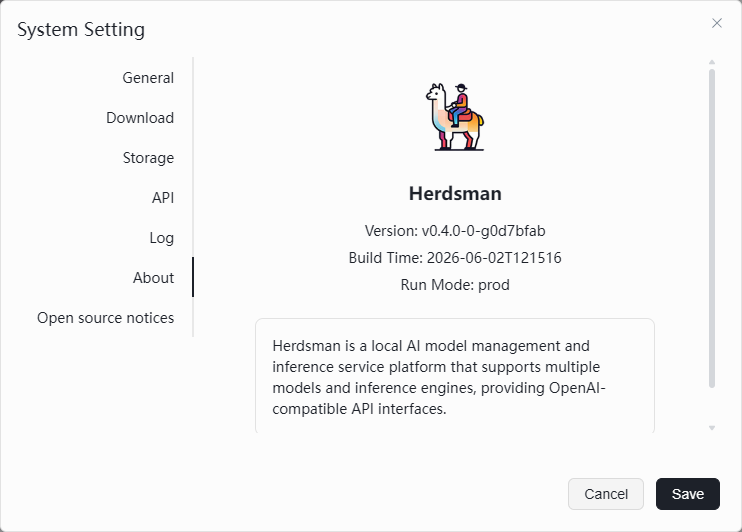
- About — view version information and developer credits.
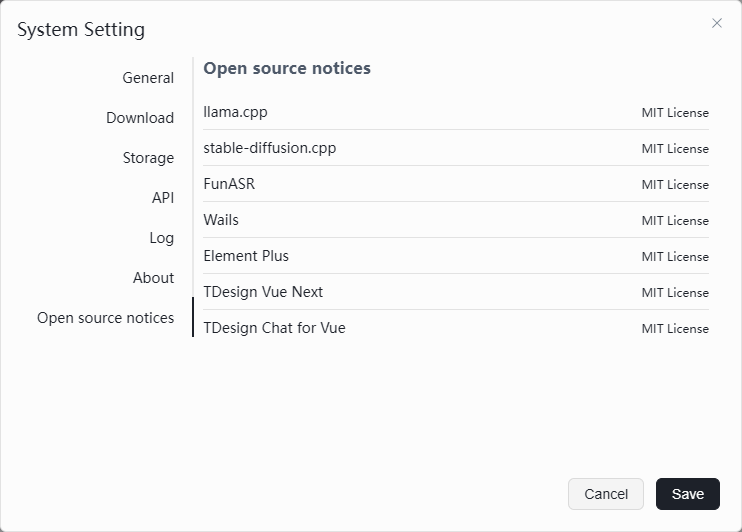
- Open Source Licenses — view the third-party open-source components and their licenses.
Recommended Configuration (Best Practices)
- Move the model directory first — right after installing Herdsman, change General → Model Directory to a drive with plenty of free space (e.g.,
D:\AI_Models) to avoid filling your system drive. - Enable LAN access for multi-device use — to use Herdsman from a tablet or phone on the same network, enable API → LAN Access and ensure your firewall allows traffic on the chosen port.
- Adjust download settings for large models — if downloads frequently disconnect, increase Download → Max Retries or check your network proxy configuration.