

Quick Start
This guide shows you how to download your first model and start chatting with it.
Switch to the Models Page
-
Open Herdsman and click Models in the top-left corner to switch to the Models page.
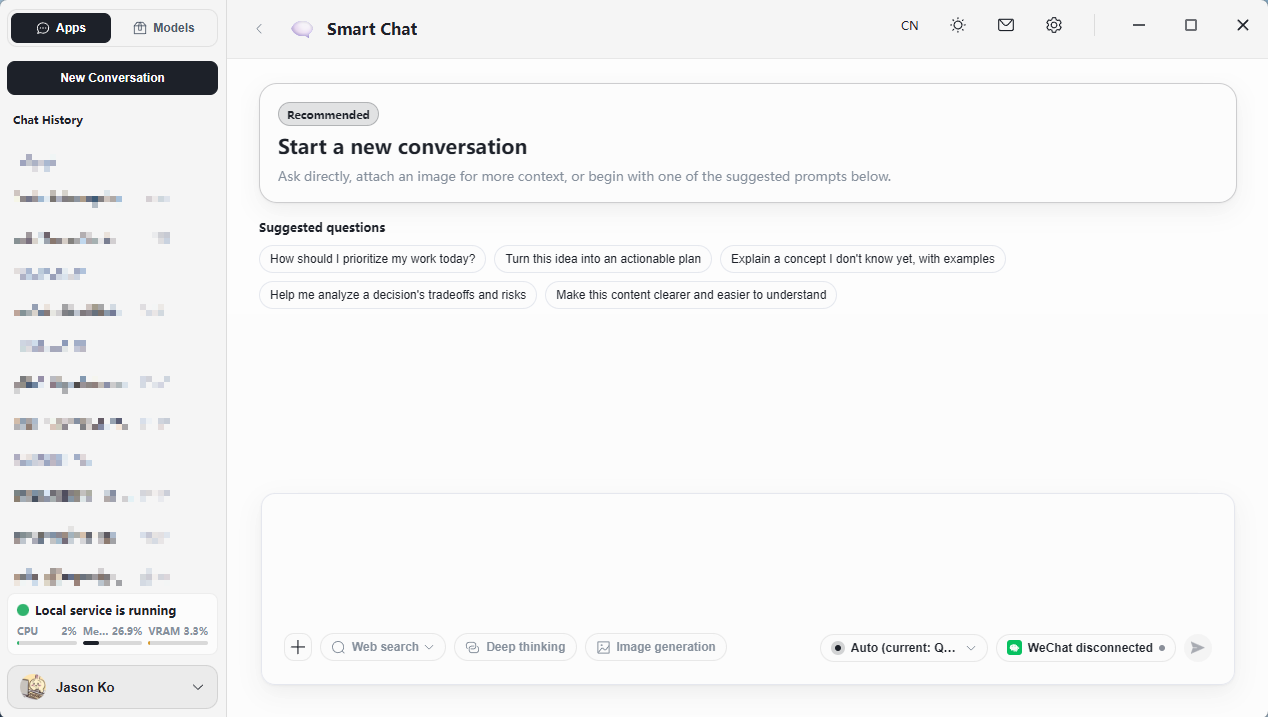
Filter and Download a Model
-
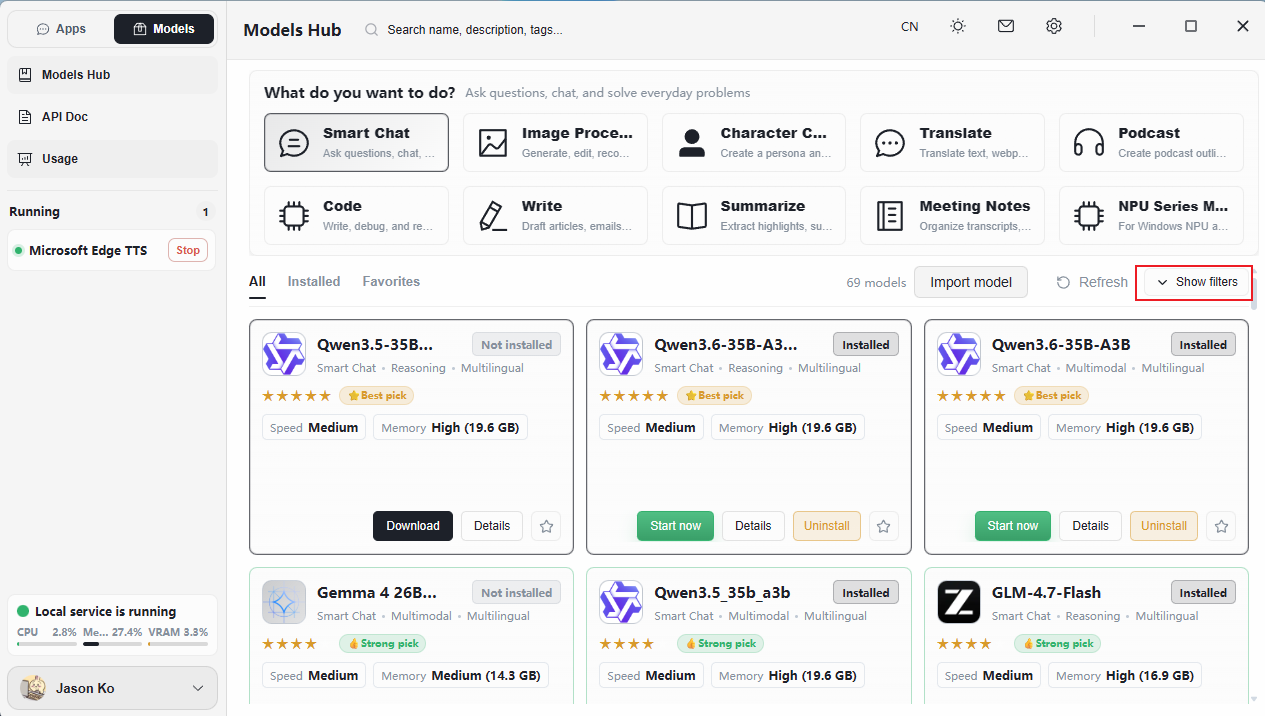
Click Expand Filters on the right to open the filter panel.
-
In the filter checkboxes, select < 10B to narrow the list to small-parameter models.
-
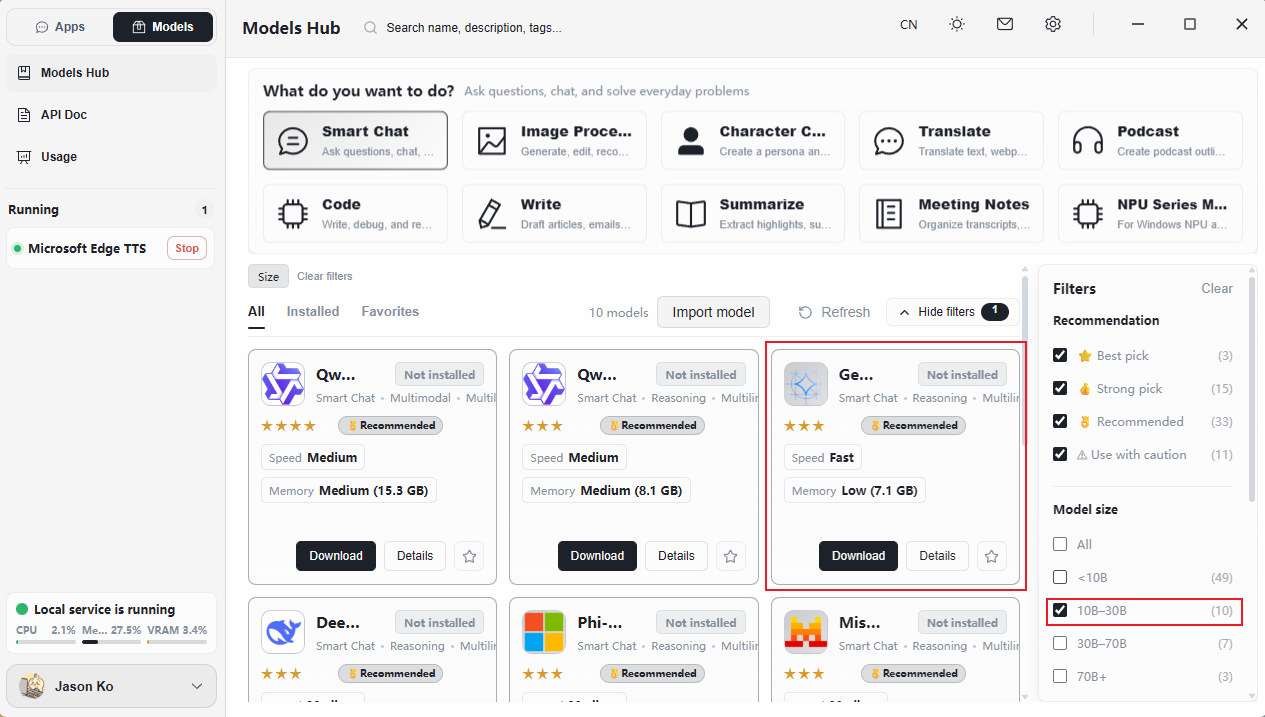
Select the Gemma 4 E2B model, then click Download Model.
-
On first download, you will be prompted to install required components. Click Install to continue.
-
Once components are installed, click Continue Downloading Model.
-
The model begins downloading and installs automatically when finished.
Model files are large. We recommend changing the model storage path to a non-system drive first. See Installing Herdsman → Configuring the Model Storage Path.
Launch the Model
-
After installation completes, a green Launch Now button appears. Click Launch Now.
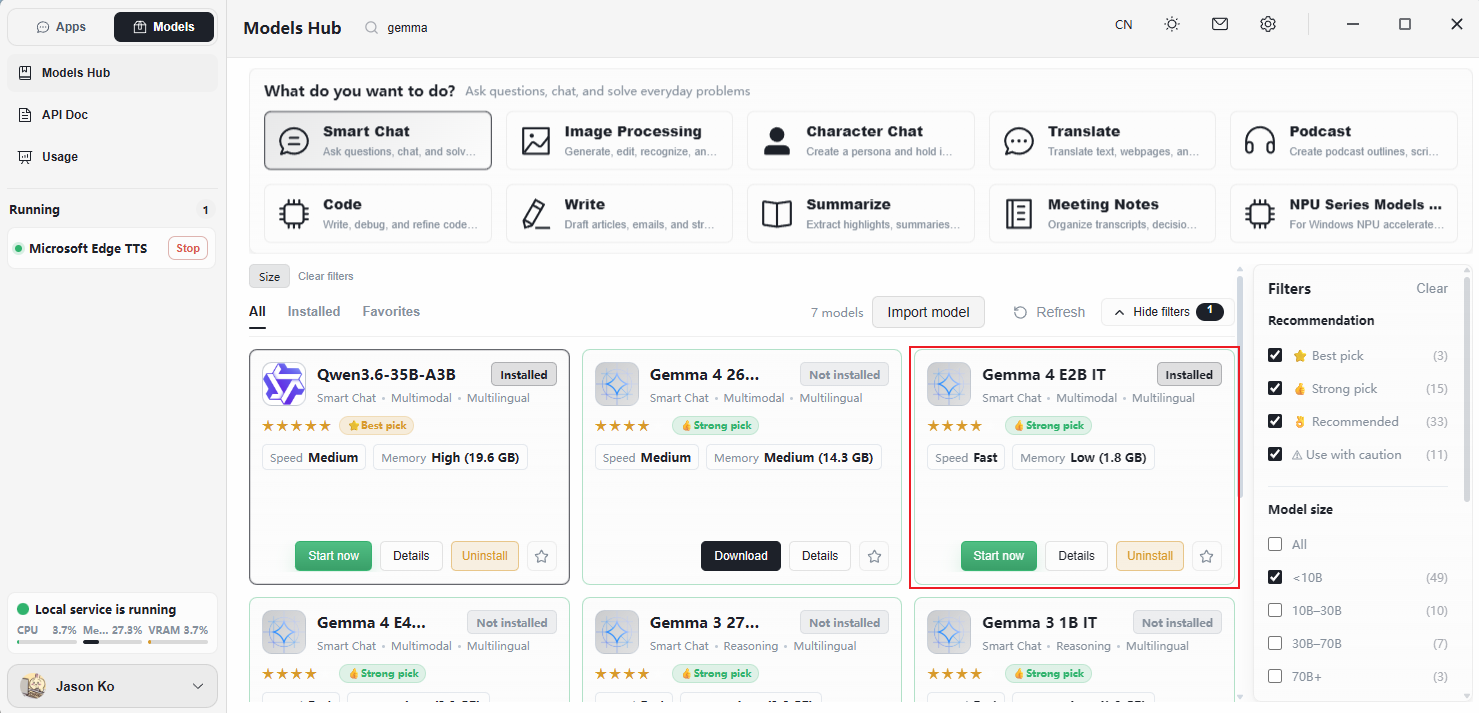
-
Configure the launch settings on the Launch Model page:
- Drag the Context Size slider to the middle position, or pull it to maximum.
- Toggle Enable Thinking to off.
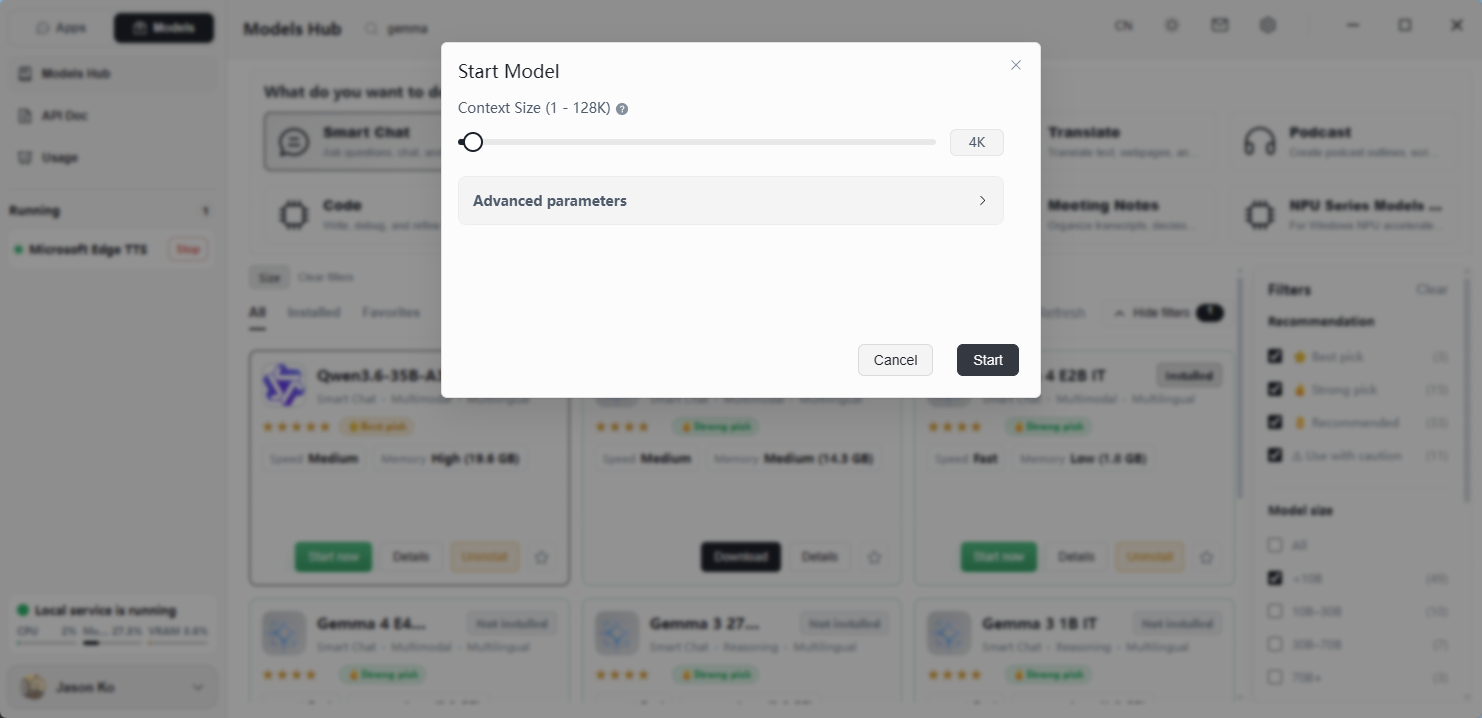
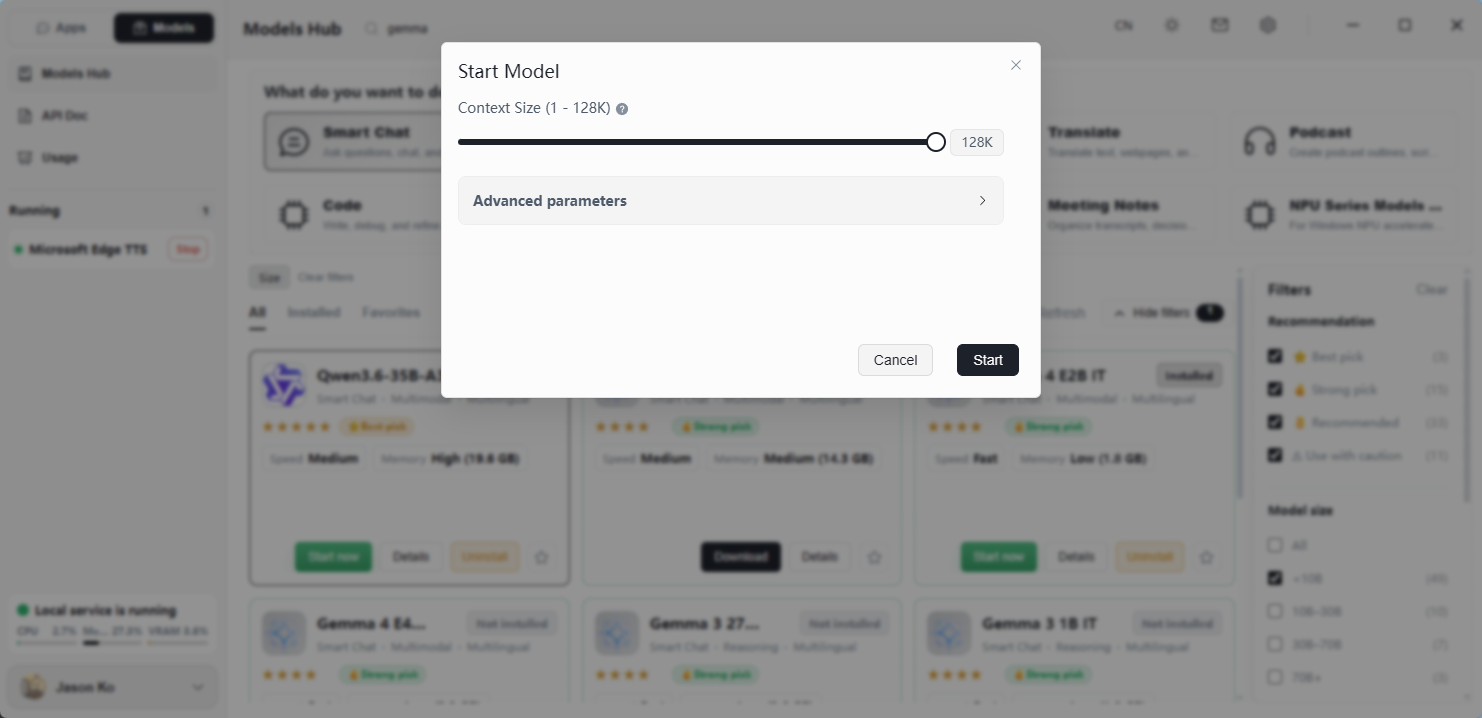
-
Click Launch.
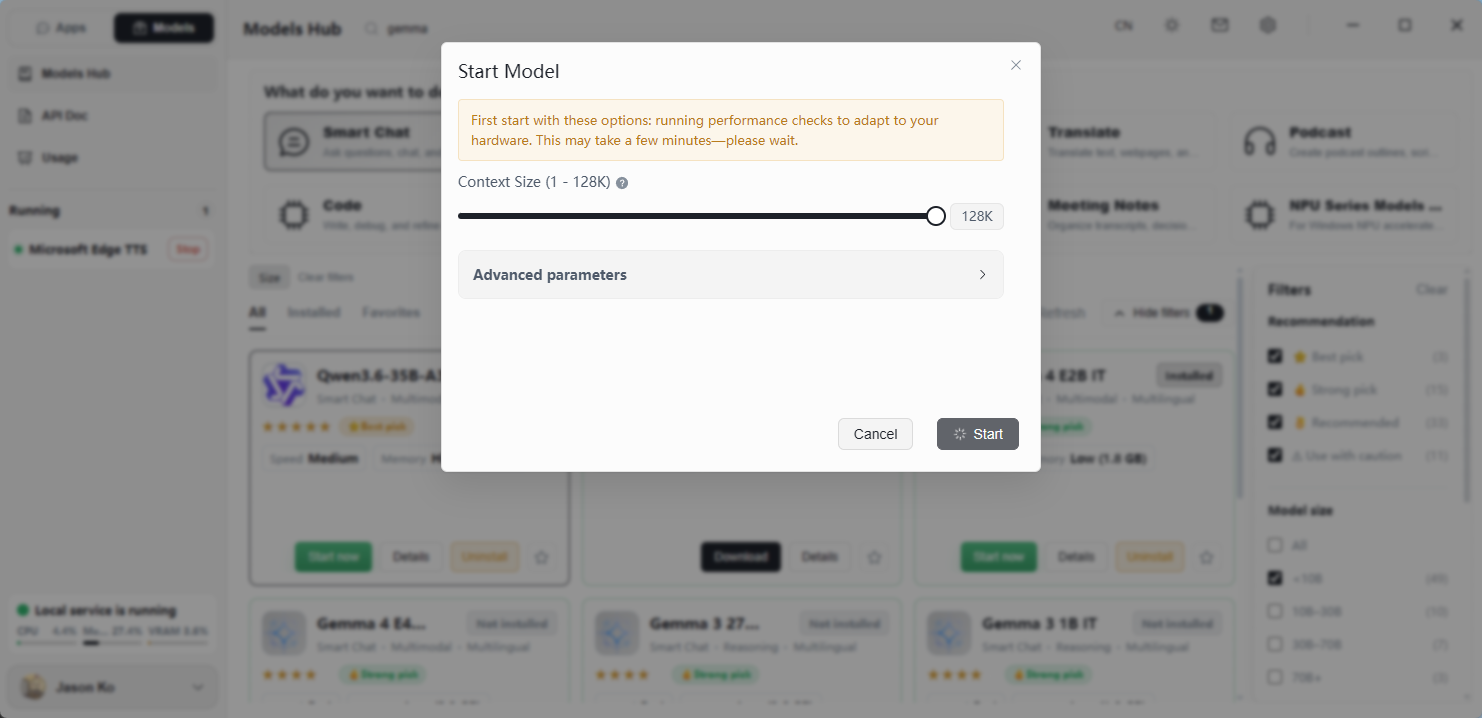
-
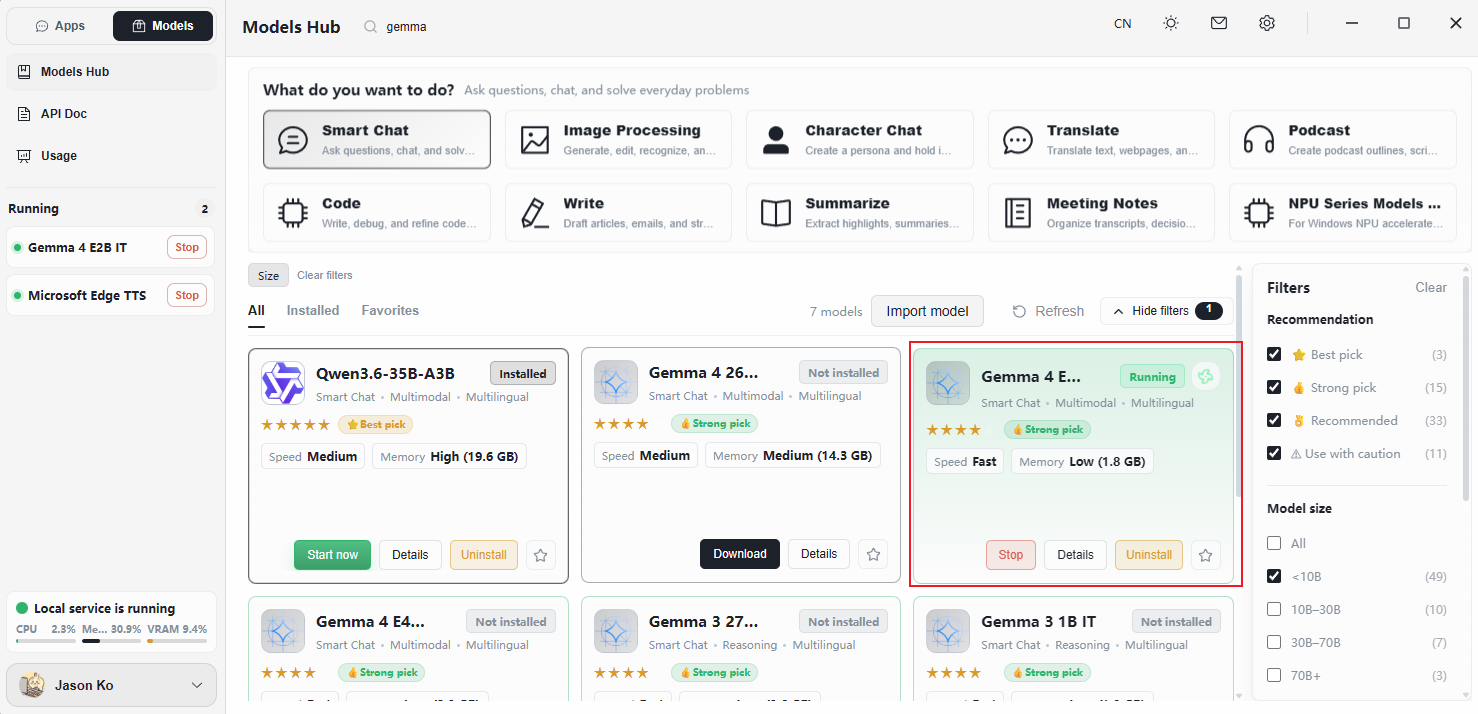
The model is now running.
Using the Model
Once a model is running in Herdsman, you can use it directly inside Herdsman or expose it as a local inference backend for FlowyAIPC.
Use the Model Inside Herdsman
-
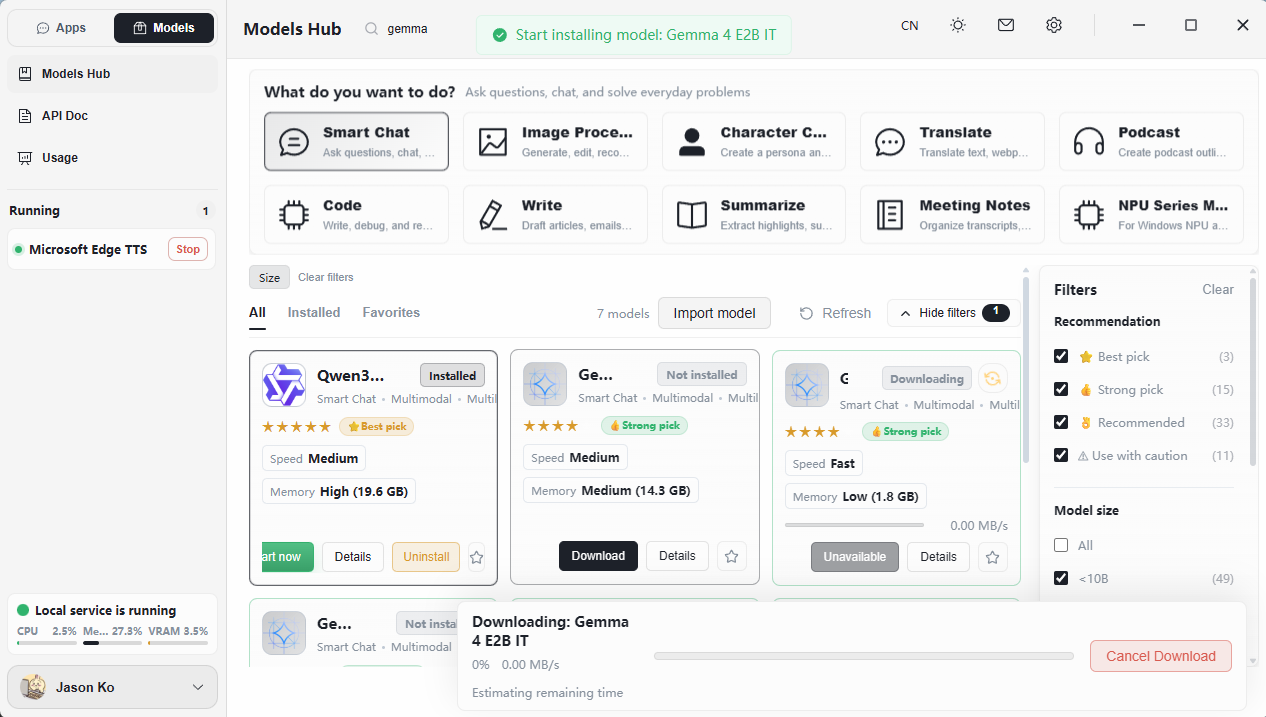
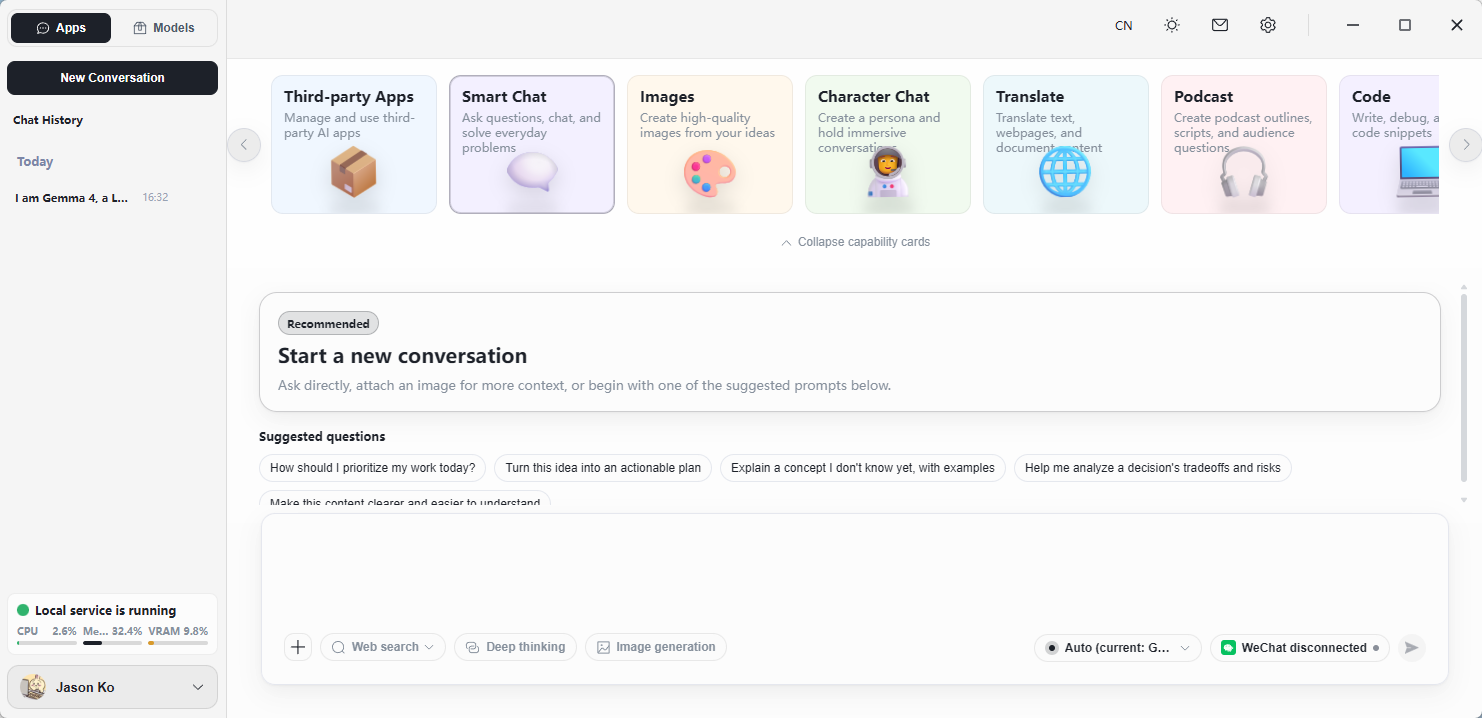
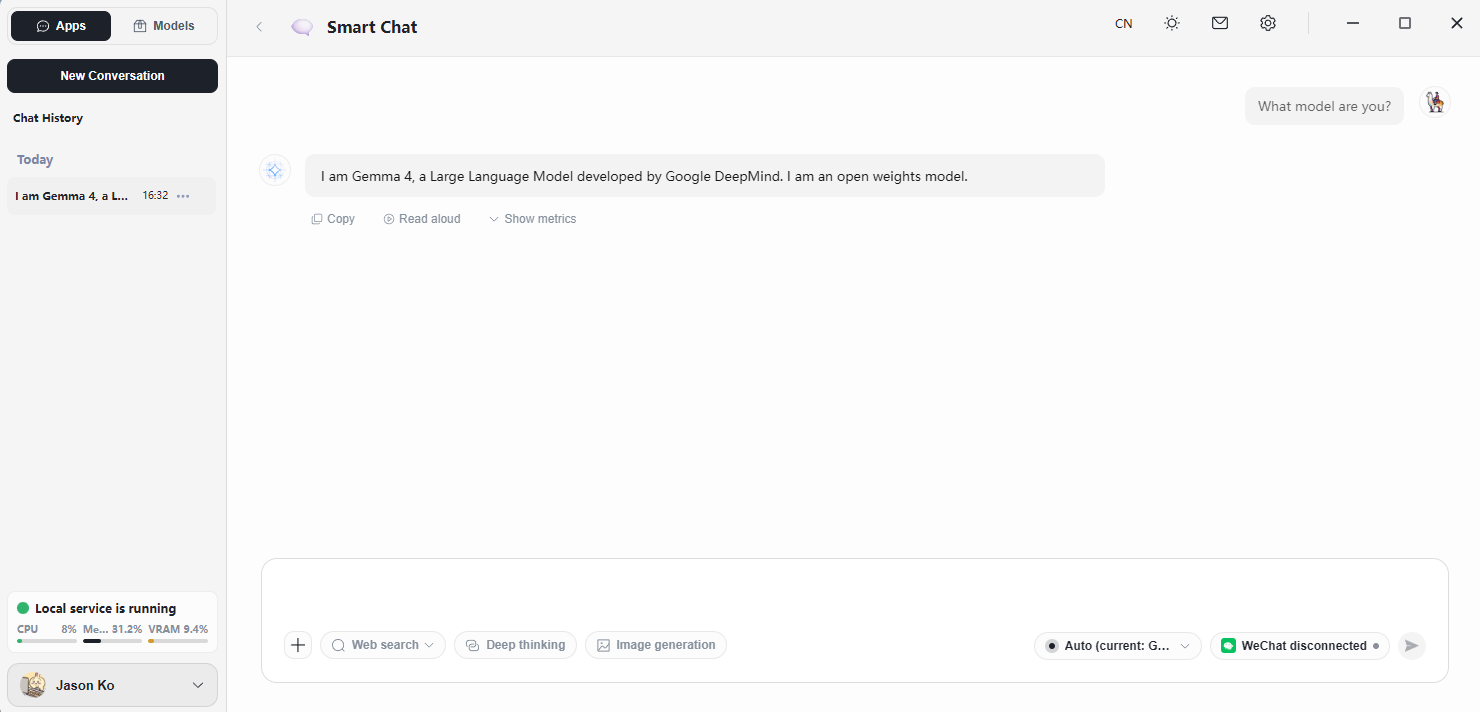
Click Apps in the top-left corner to switch to the Apps view.
-
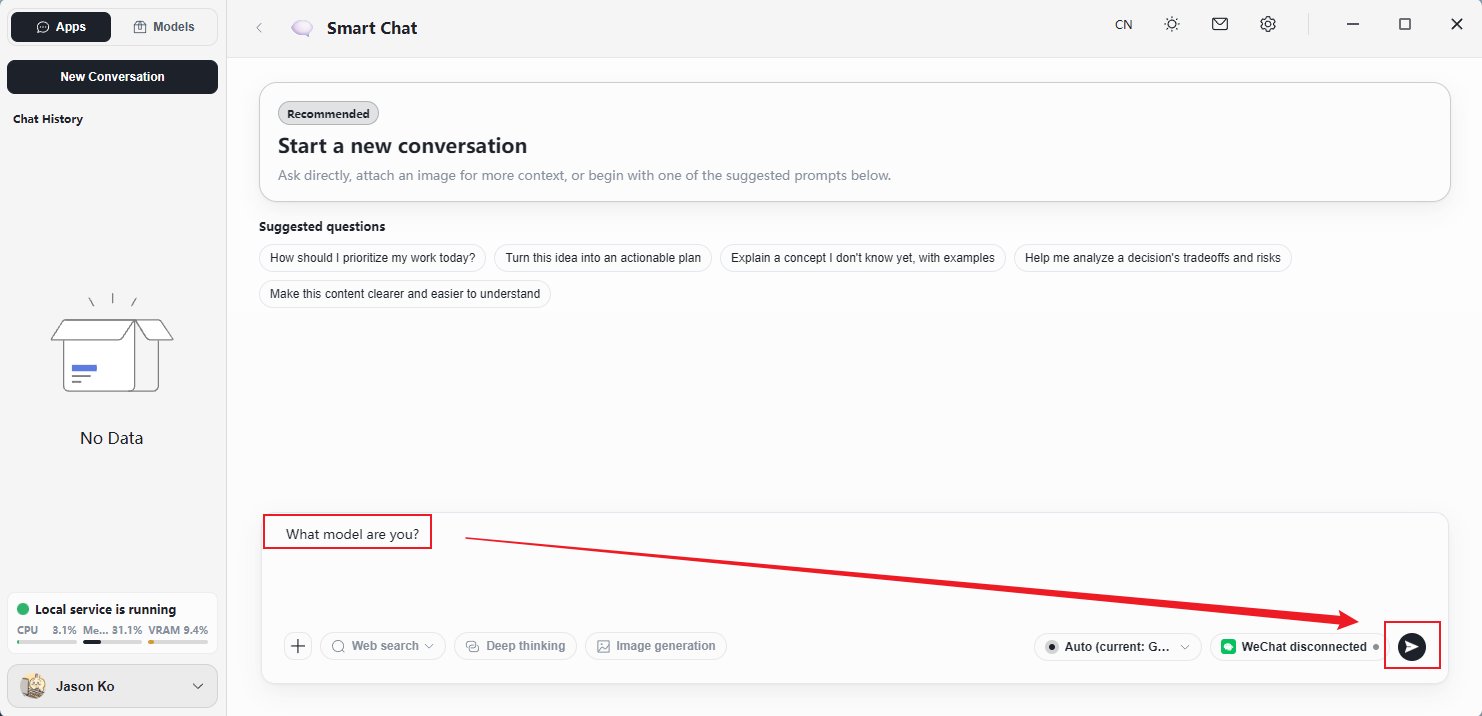
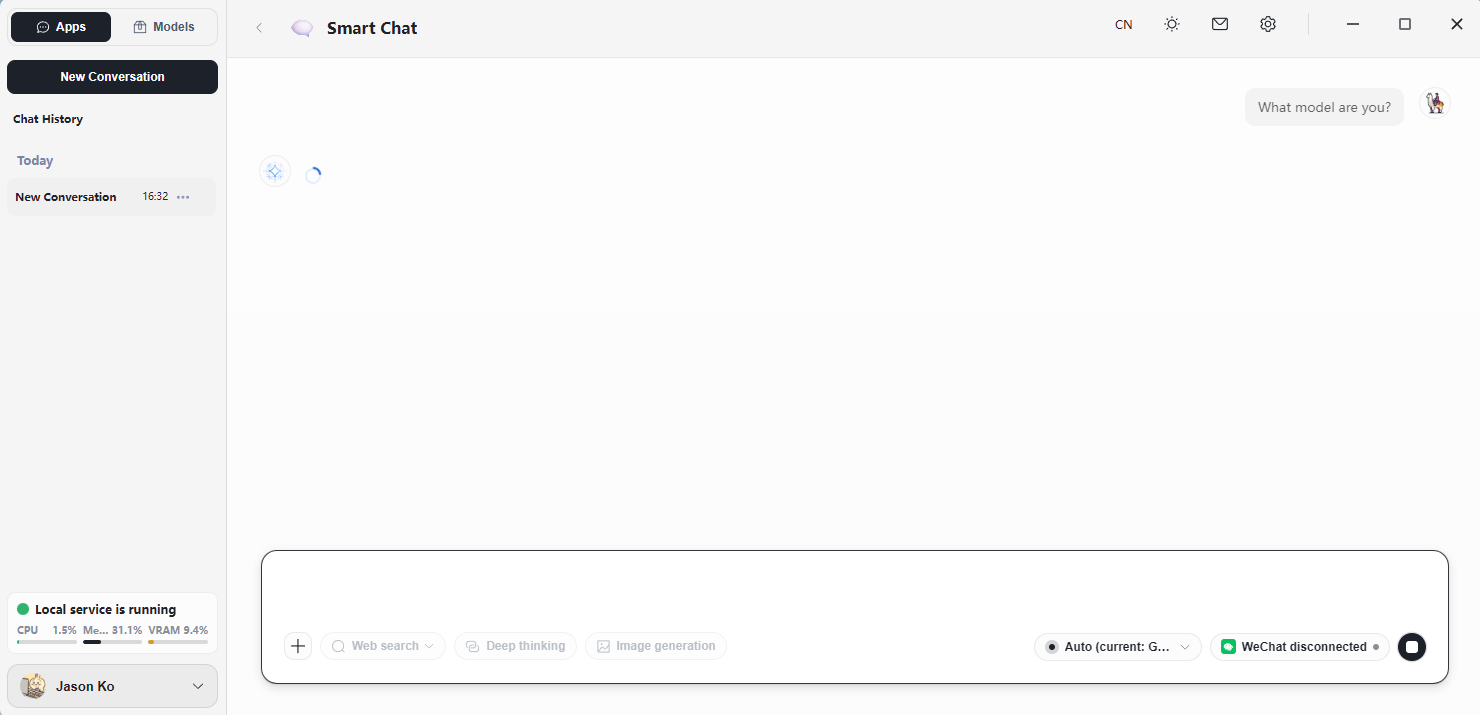
Type your question in the chat box and click Start Chat.
Use the Local Model from FlowyAIPC
Make sure you have already completed Download Model and Launch Model. FlowyAIPC automatically connects to any running Herdsman model.
-
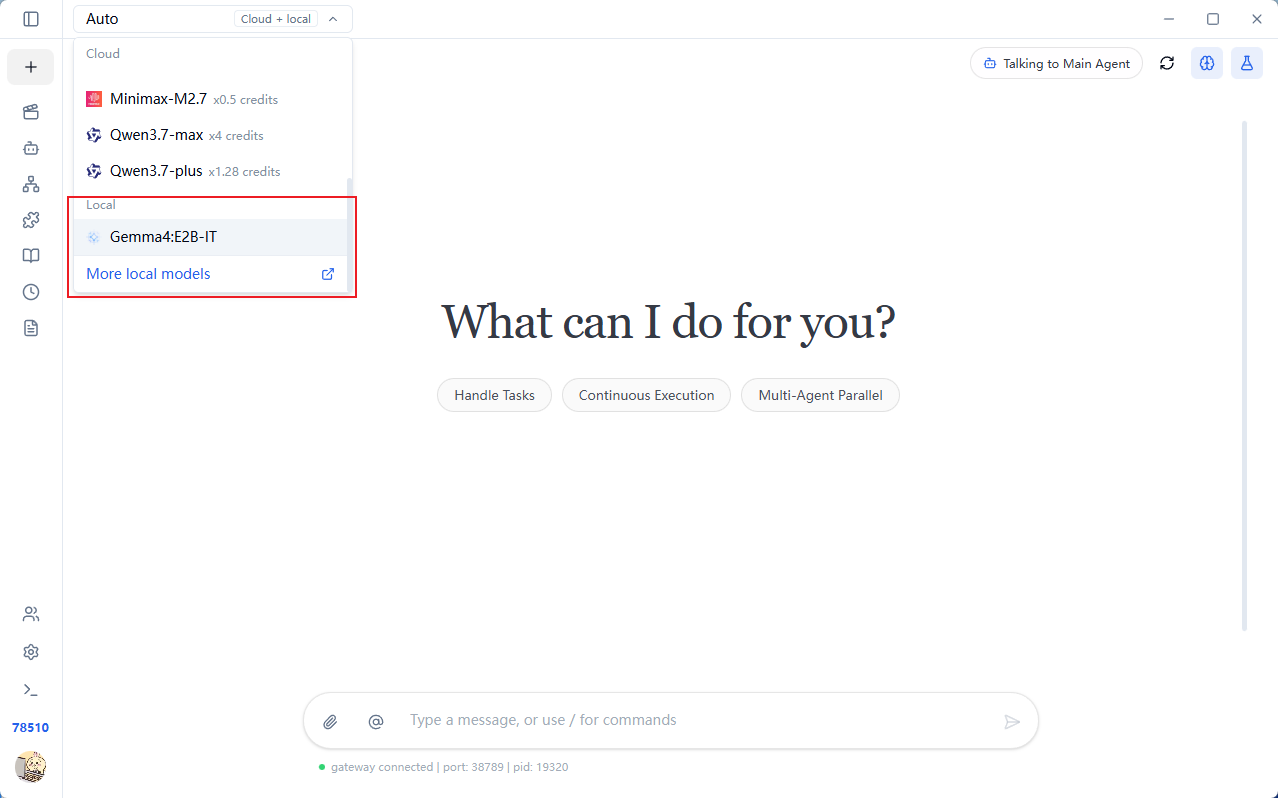
Open FlowyAIPC and click the model selector in the top-left, then scroll to the bottom of the list.
-
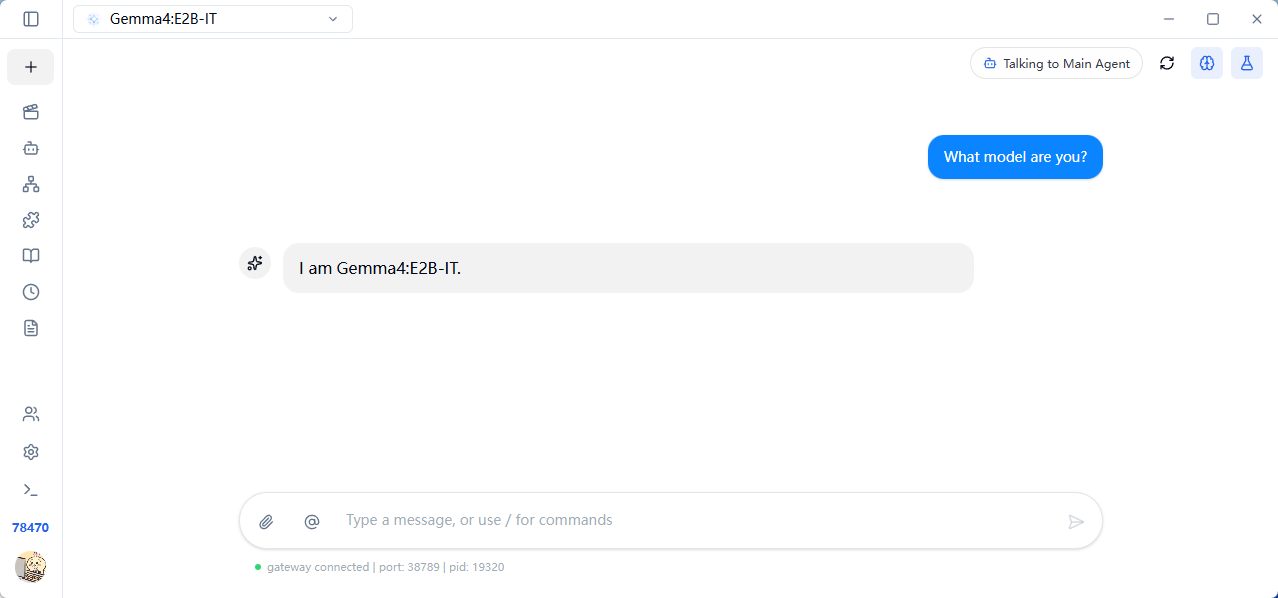
Under Local, select Gemma 4-E2B-IT.
-
You can now chat with your local model from FlowyAIPC.